
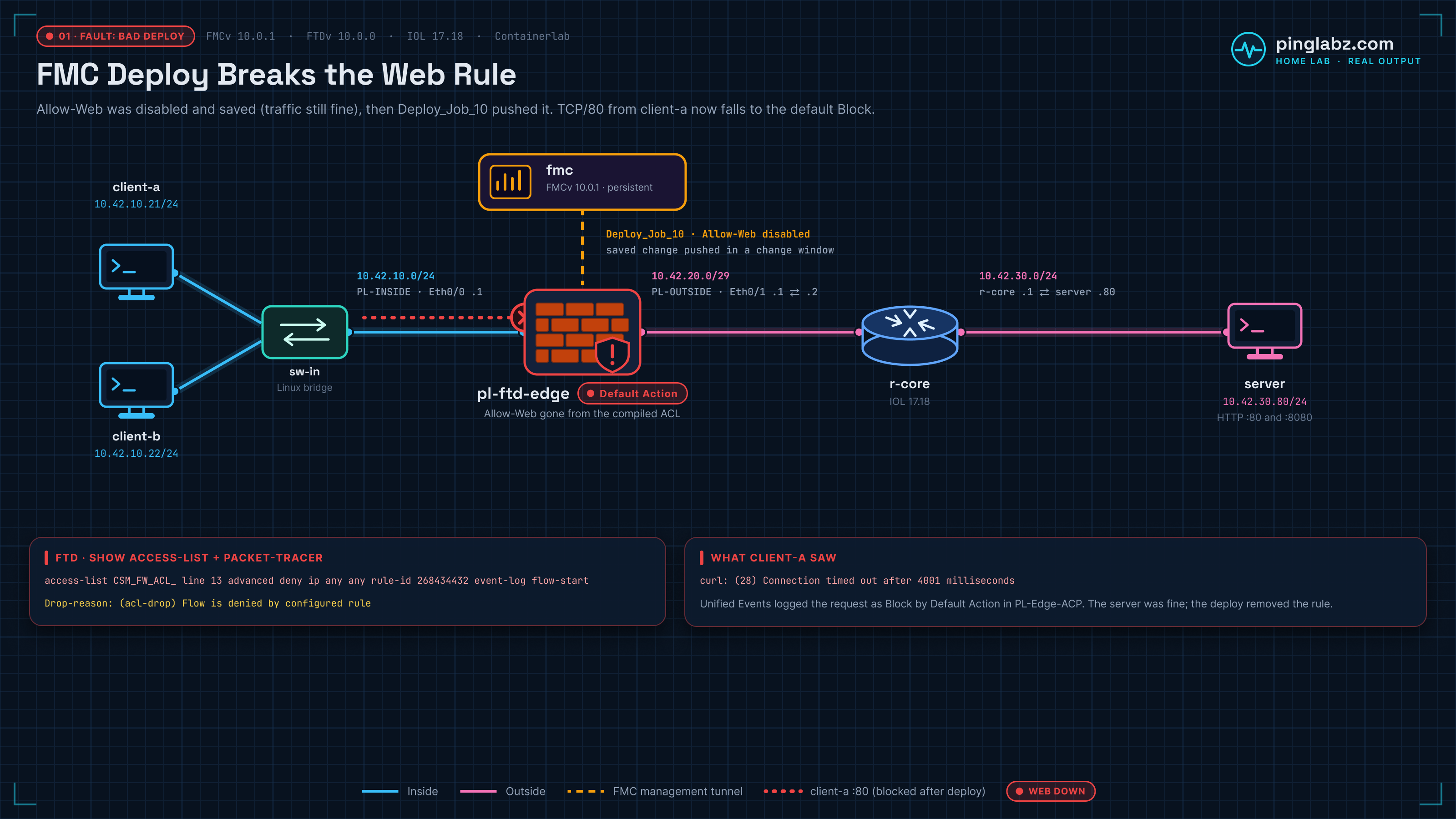
Web traffic stopped immediately after a change-window deploy. The deployment itself completed successfully. What it delivered was the problem: Allow-Web had been disabled in FMC, leaving the access control policy's default Block action to catch HTTP.
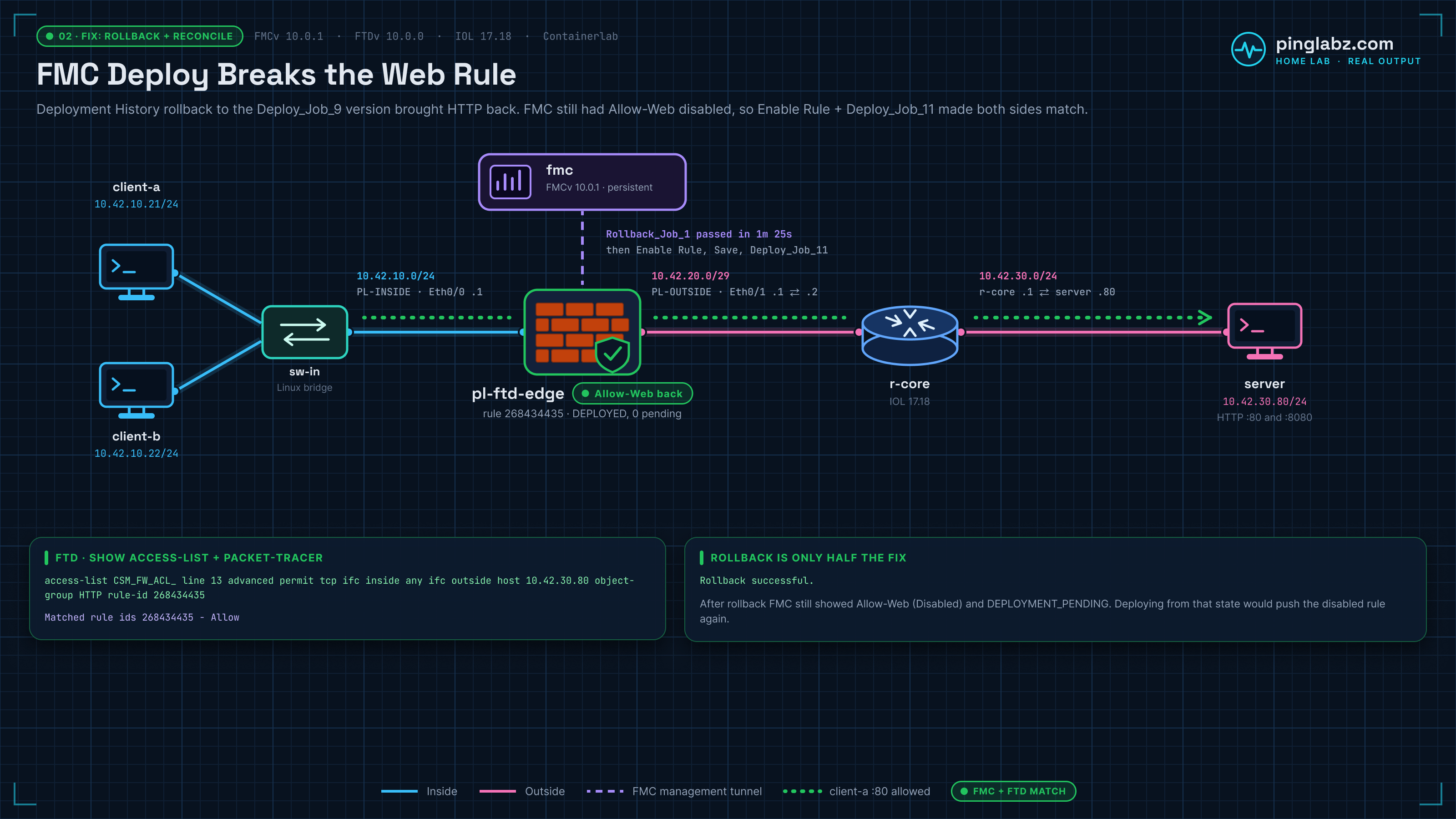
FMC Deployment History got traffic back. Rolling the device back to its previous good version restored HTTP 200, but FMC still had Allow-Web disabled. Deploying that unchanged policy again would have removed the restored allow rule.
That second step matters: recover the device, then correct the FMC policy before deploying again. This lab records both parts on FMCv 10.0.1 build 1 and FTDv 10.0.0. It's built in my home lab with IOL in Containerlab, not a supported production deployment.
Topology and addressing
The data path is client-a or client-b → inside switch → FTDv → r-core → HTTP server. FMC manages FTD over the management tunnel, separate from this client-to-server path.
| Node or interface | Address | Role |
|---|---|---|
| client-a | 10.42.10.21 | Inside HTTP test client |
| client-b | 10.42.10.22 | Second inside test client |
| FTD Ethernet0/0 | 10.42.10.1/24 | inside; security zone PL-INSIDE |
| FTD Ethernet0/1 | 10.42.20.1/29 | outside; security zone PL-OUTSIDE |
| r-core, FTD-facing | 10.42.20.2 | FTD's next hop toward the server |
| r-core, server-facing | 10.42.30.1 | Server's next hop toward the clients |
| HTTP server | 10.42.30.80 | HTTP on TCP/80 |
FTD routes 10.42.30.0/24 through 10.42.20.2 outside. The server's return route sends 10.42.10.0/24 through 10.42.30.1. No NAT, route or interface change was made during this test.
The baseline access control policy (ACP), PL-Edge-ACP, has enabled Allow-ICMP and Allow-Web rules, followed by default Block. Allow-Web permits HTTP to 10.42.30.80 from PL-INSIDE to PL-OUTSIDE. TCP/8080 is supposed to stay blocked.
The FTD-to-FMC registration lab covers bringing this managed device online, including the registration-key mismatch. For the local-management alternative, see FTDv bootstrap with FDM. The FDM access control lab follows a separate rule-order fault.
Saved but not deployed: HTTP still worked
In FMC, open Policies → Access Control → PL-Edge-ACP. On the Allow-Web row, open the ellipsis menu, choose Disable Rule, then Save. At this point the bad change is saved in FMC; it has not reached the device.
Open Deploy → Advanced Deploy, then the device's Preview icon and Comparison View. The deployed version has Allow-Web enabled; the version on Firewall Management Center has it disabled. Advanced Deploy lists the device as Ready for Deployment.
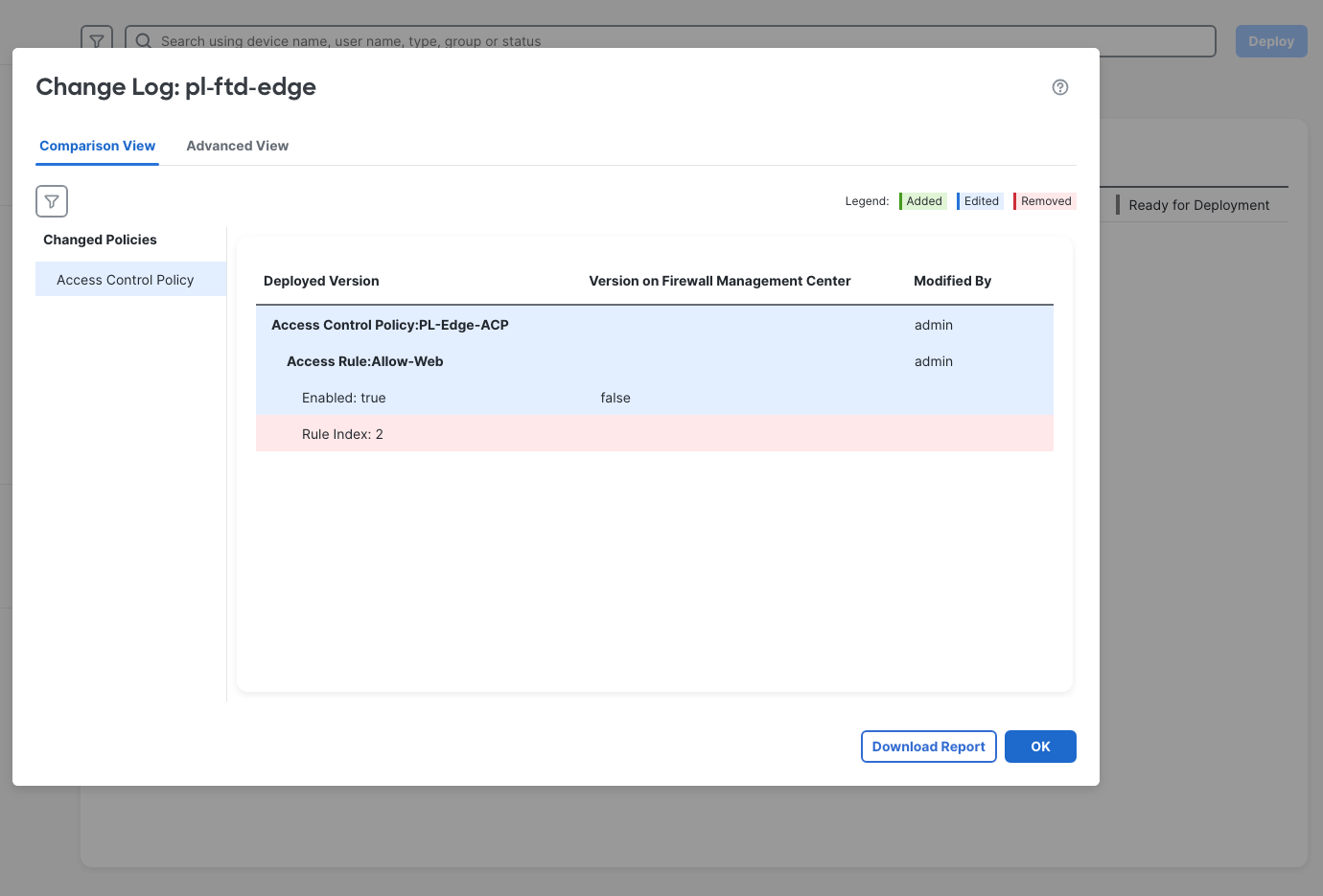
A fresh HTTP request from client-a, using source port 40241, still succeeded after Save. This is the recorded curl result:
HTTP 200 time 0.008236
That is the evidence for “FMC saved but not deployed” here. The pending rule disable did not change this new HTTP flow. It was still using the previously deployed policy.
For the client checks, the recorded curl options selected a fresh source port with --local-port, limited connection establishment with --connect-timeout 4, and capped the whole request with --max-time 6. The destination was http://10.42.30.80/. Matching the source port in Unified Events makes it possible to distinguish each real request from earlier traffic and simulations.
The bad deploy: successful job, broken HTTP
In Advanced Deploy, select the device, click Deploy, enter deployment notes, then confirm Deploy. The controlled fault became Deploy_Job_10. FMC reported successful completion.
Only after that completion did the decisive client-a test run, from source port 40243:
HTTP 000 time 4.001480
curl: (28) Connection timed out after 4001 milliseconds
HTTP 000 is curl's reported status when this attempt received no HTTP response. The timeout establishes the symptom; the next checks identify the policy decision.
Open Events & Logs → Analysis → Unified Events, keep Last 1 hour, and click Refresh. Inspect the connection from 10.42.10.21:40243 to 10.42.30.80:80. Event Details identifies PL-Edge-ACP, Default Action, and Block.
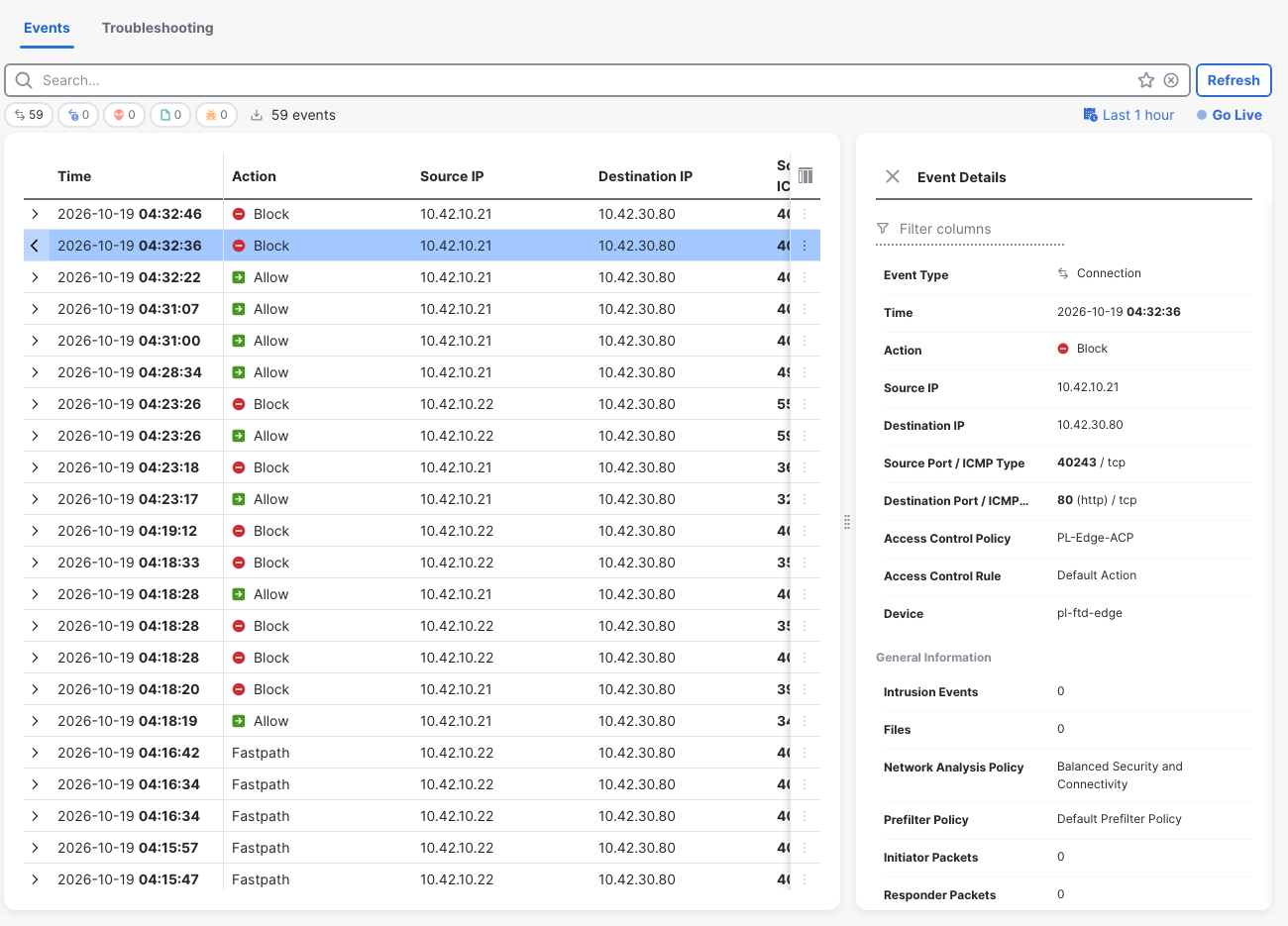
The displayed event time is 04:32:36 on October 19. FMC's display used UTC minus four hours in this run; evidence timestamps use UTC. Correlate the tuple as well as the clock.
Check what FTD actually installed
On FTD, use show access-list in the diagnostic CLI. This excerpt preserves the end of the installed ACL: Allow-ICMP remains, then the default deny follows. Allow-Web is absent from the full listing.
access-list CSM_FW_ACL_ line 8 remark rule-id 268434434: ACCESS POLICY: PL-Edge-ACP - Mandatory
access-list CSM_FW_ACL_ line 9 remark rule-id 268434434: L7 RULE: Allow-ICMP
access-list CSM_FW_ACL_ line 10 advanced permit icmp ifc inside any ifc outside any rule-id 268434434 (hitcnt=43) (Last Hit=08:23:25 UTC Oct 19 2026)
access-list CSM_FW_ACL_ line 11 remark rule-id 268434432: ACCESS POLICY: PL-Edge-ACP - Default
access-list CSM_FW_ACL_ line 12 remark rule-id 268434432: L4 RULE: DEFAULT ACTION RULE
access-list CSM_FW_ACL_ line 13 advanced deny ip any any rule-id 268434432 event-log flow-start (hitcnt=29) (Last Hit=08:32:39 UTC Oct 19 2026)
At FTD's native CLISH prompt, show access-control-config independently showed default Block and only Allow-ICMP in the user rule set. That command was rejected when tried in the diagnostic CLI, so use the native prompt for that policy view.
The diagnostic CLI simulation used packet-tracer input inside tcp 10.42.10.21 40300 10.42.30.80 80. Its route lookup found the expected next hop, but the access-list phase dropped the packet at rule 268434432:
packet-tracer input inside tcp 10.42.10.21 40300 10.42.30.80 80
...
Phase: 3
Type: ACCESS-LIST
Subtype:
Result: DROP
Elapsed time: 295 ns
Config:
access-group CSM_FW_ACL_ global
access-list CSM_FW_ACL_ advanced deny ip any any rule-id 268434432 event-log flow-start
access-list CSM_FW_ACL_ remark rule-id 268434432: ACCESS POLICY: PL-Edge-ACP - Default
access-list CSM_FW_ACL_ remark rule-id 268434432: L4 RULE: DEFAULT ACTION RULE
...
Action: drop
Time Taken: 89339 ns
Drop-reason: (acl-drop) Flow is denied by configured rule, Drop-location: frame snp_classify_table_lookup:6167 flow (NA)/NA
Source port 40300 belongs to this simulation, not the failed curl request. The GUI Packet Tracer test used 40301 and also dropped. The real outage evidence is the 40243 timeout and its Default Action event.
For help reading phases, see the ASA packet-tracer walkthrough. In this FMC series, a dead static-route next hop and a prefilter Fastpath rule that skips the ACP produce different faults. Here the route stayed correct and the deployed web allow disappeared.
Roll back from FMC Deployment History
The known-good deployment was Deploy_Job_9, shown as October 19, 2026, 4:22 AM. The bad one was Deploy_Job_10, shown as 4:32 AM. These labels come from this run; choose your own verified good version when following the workflow.
- Open the Notifications bell, select Deployments, then Show deployment history. This opens Deploy / Deployment History. The recorded route into history was through notifications.
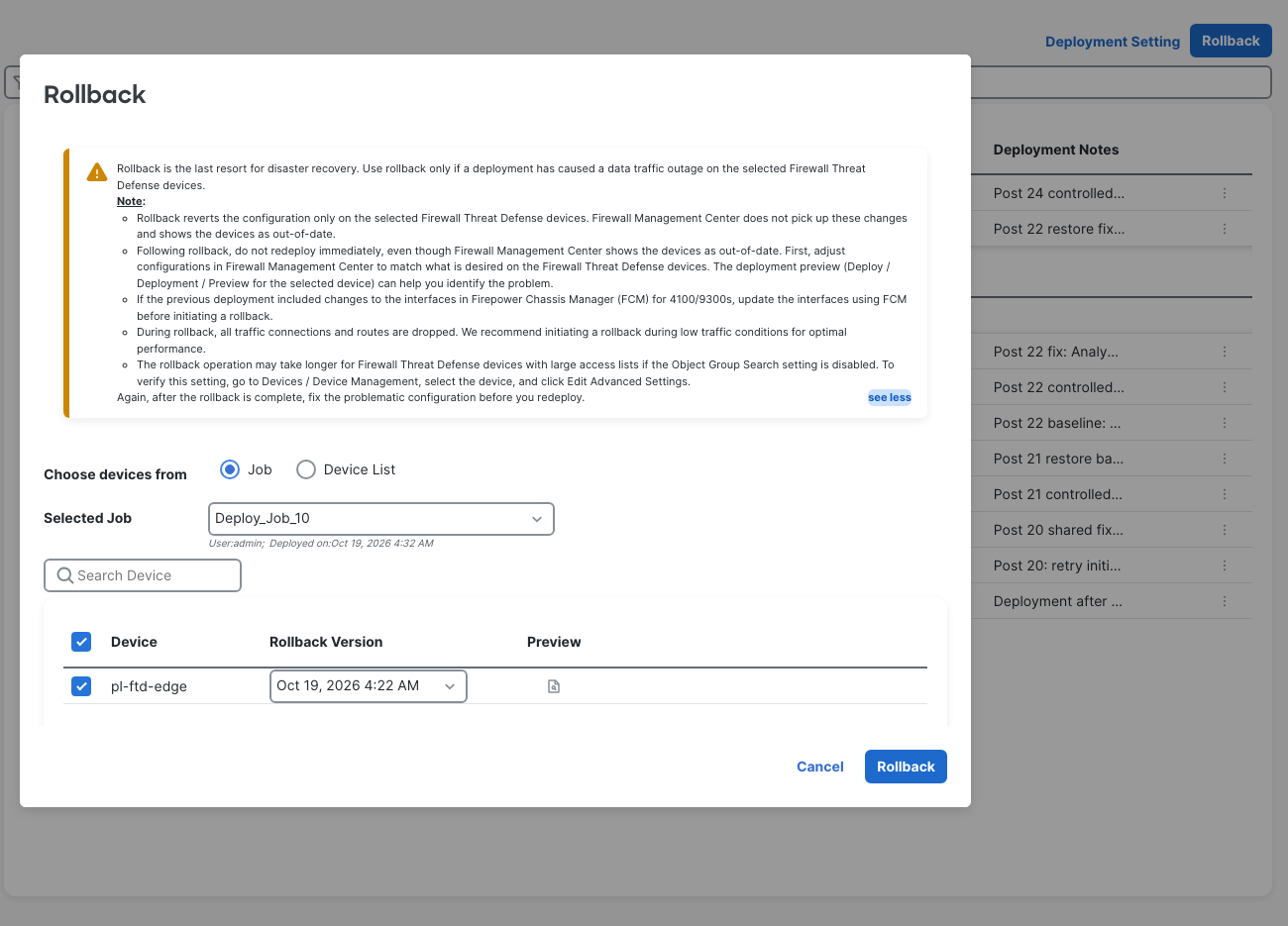
- Click the Rollback button at the top right. Leave Job selected and choose the latest bad job, Deploy_Job_10.
- Check pl-ftd-edge and select Oct 19, 2026 4:22 AM as its Rollback Version. Expand see more and read the warning before continuing.
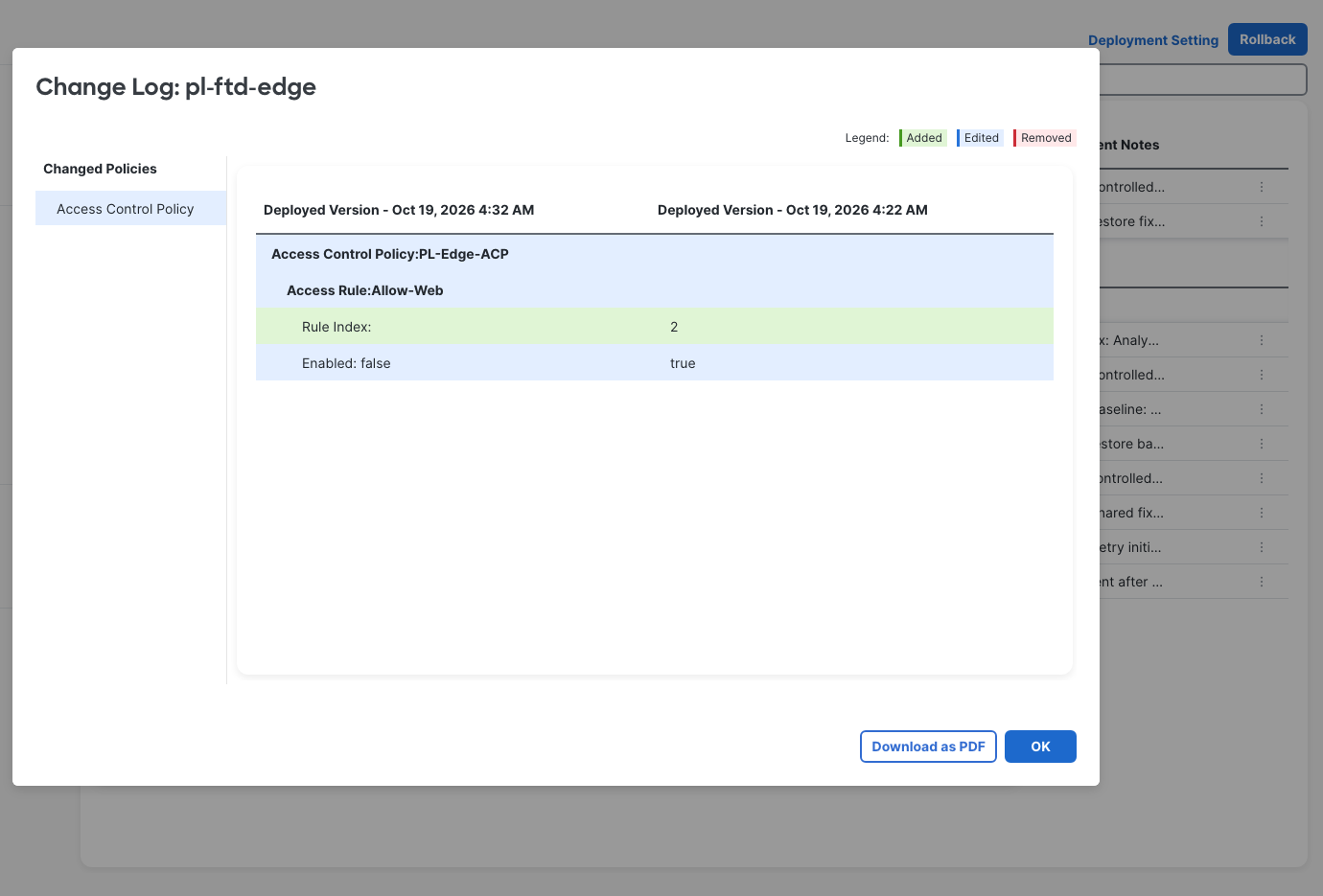
- Open the device row's Preview icon. The comparison shows Allow-Web disabled in the bad 4:32 AM version and enabled in the good 4:22 AM version. Check the actual difference rather than choosing a timestamp alone.
- Close the comparison with OK, then click Rollback. The final warning says rollback clears and reconfigures the device using the previous version, dropping existing connections and routes. It also advises fixing FMC policy and deploying where possible. In this deliberate outage test, Proceed confirmed the rollback.
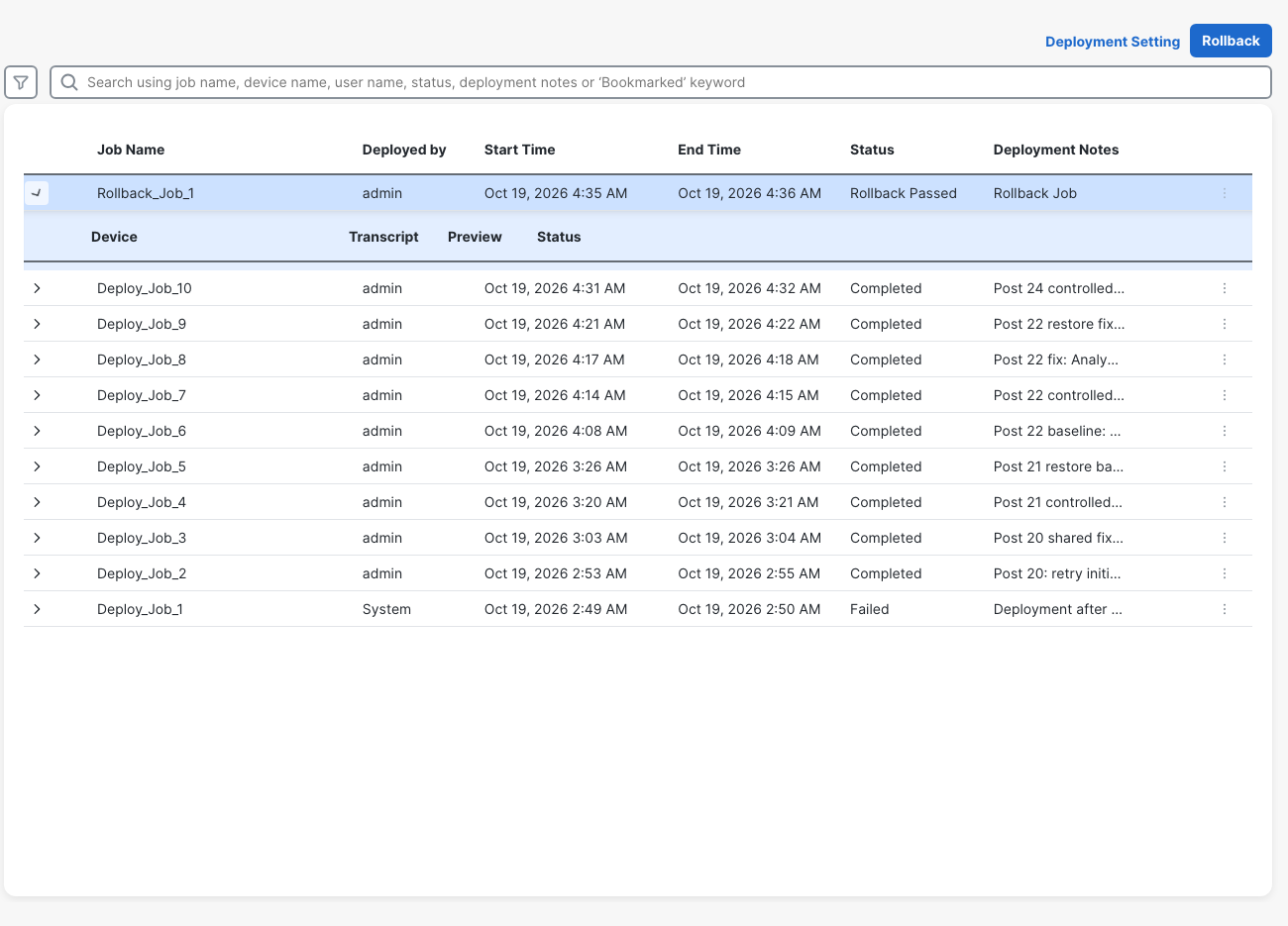
- Monitor Notifications → Deployments through preparation and completion. Return to Show deployment history, reload, and check the new rollback job. FMC created Rollback_Job_1, with Rollback Passed. The rollback notification reported 1 minute 25 seconds for this run.
Verify traffic before touching the FMC policy
After rollback, a new client-a HTTP request from source port 40244 returned:
HTTP 200 time 0.677610
Unified Events recorded that real connection as Allow by Allow-Web. FTD's ACL again contained Allow-Web, with hit count 1. A new invocation of the same CLI simulation tuple, source port 40300, reached Snort's firewall phase and finished with allow:
Phase: 15
Type: SNORT
Subtype: firewall
Result: ALLOW
...
Network 0, Inspection 0, Detection 0, Rule ID 268434435
...
Matched rule ids 268434435 - Allow
...
Action: allow
The GUI simulation using 40302 also allowed. Those simulations support the device-policy check; the curl result proves an actual HTTP exchange recovered. For a case where an allow verdict still needs packet evidence, see packet-tracer allows but capture shows no SYN-ACK.
Rollback restored FTD, but FMC still had the bad policy
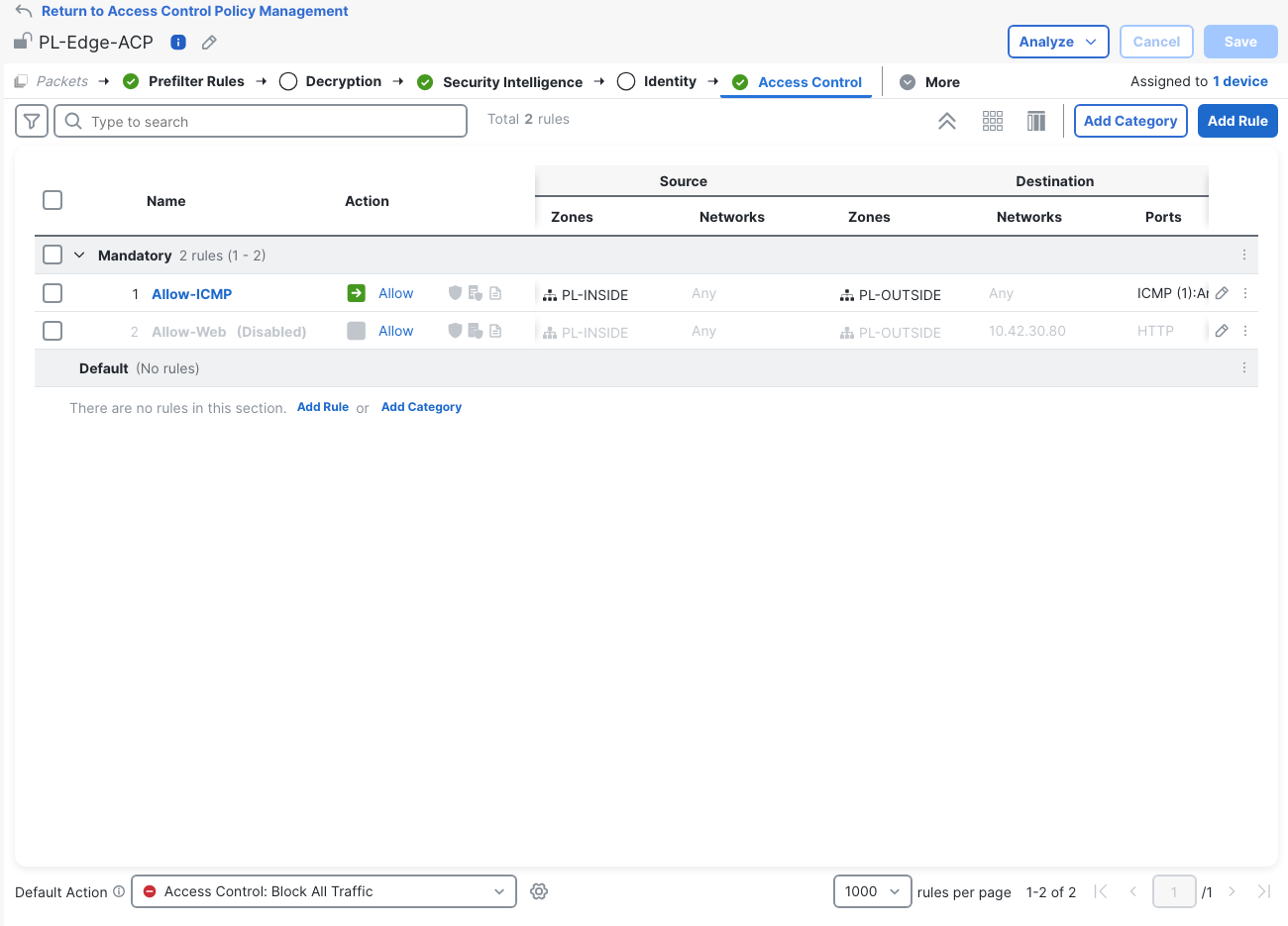
Reopen Policies → Access Control → PL-Edge-ACP before making another change. In this run, the editor still showed Allow-Web (Disabled). Its ellipsis menu offered Enable Rule.
The read-only API checks agreed. These are excerpts from the Allow-Web rule, device record, and deployable-device response, respectively; whole omitted lines are marked with ...:
      "enabled": false,
...
      "name": "Allow-Web",
...
  "deploymentStatus": "DEPLOYMENT_PENDING",
...
      "canBeDeployed": true,
      "upToDate": false,
...
    "count": 1,
    "pages": 1
Advanced Deploy showed Rollback Successful and Deploy post configuration updates. Its Preview stated that the device had been restored to the version deployed at 2026 Oct 19 08:22:51 UTC, and explained that rollback does not revert configuration changes in FMC. Policies were marked out-of-date.
The important comparison was still device Enabled: true versus FMC false:
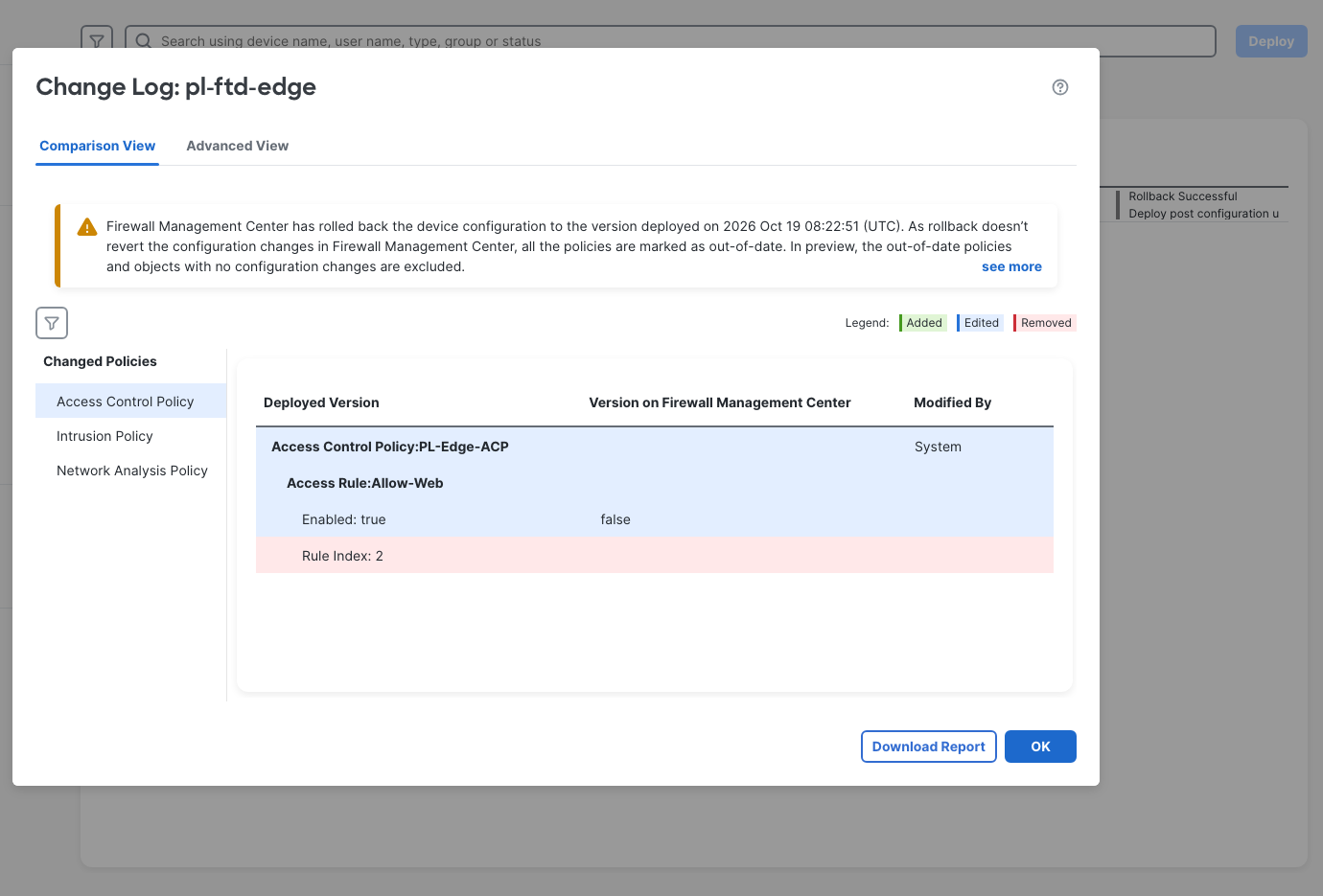
The Deployment Pending state did not mean the recovery had failed. The device was passing HTTP again, while FMC's saved policy still described the fault. A deployment of that unchanged disabled rule would have broken HTTP again. This lab corrected the policy before redeploying; it did not repeat the outage to demonstrate that consequence a second time.
Bring FMC and the device back into agreement
- In PL-Edge-ACP, open Allow-Web's ellipsis menu and choose Enable Rule.
- Click Save. Confirm that the intended policy has enabled Allow-ICMP and Allow-Web, default Block, and the Default Prefilter Policy.
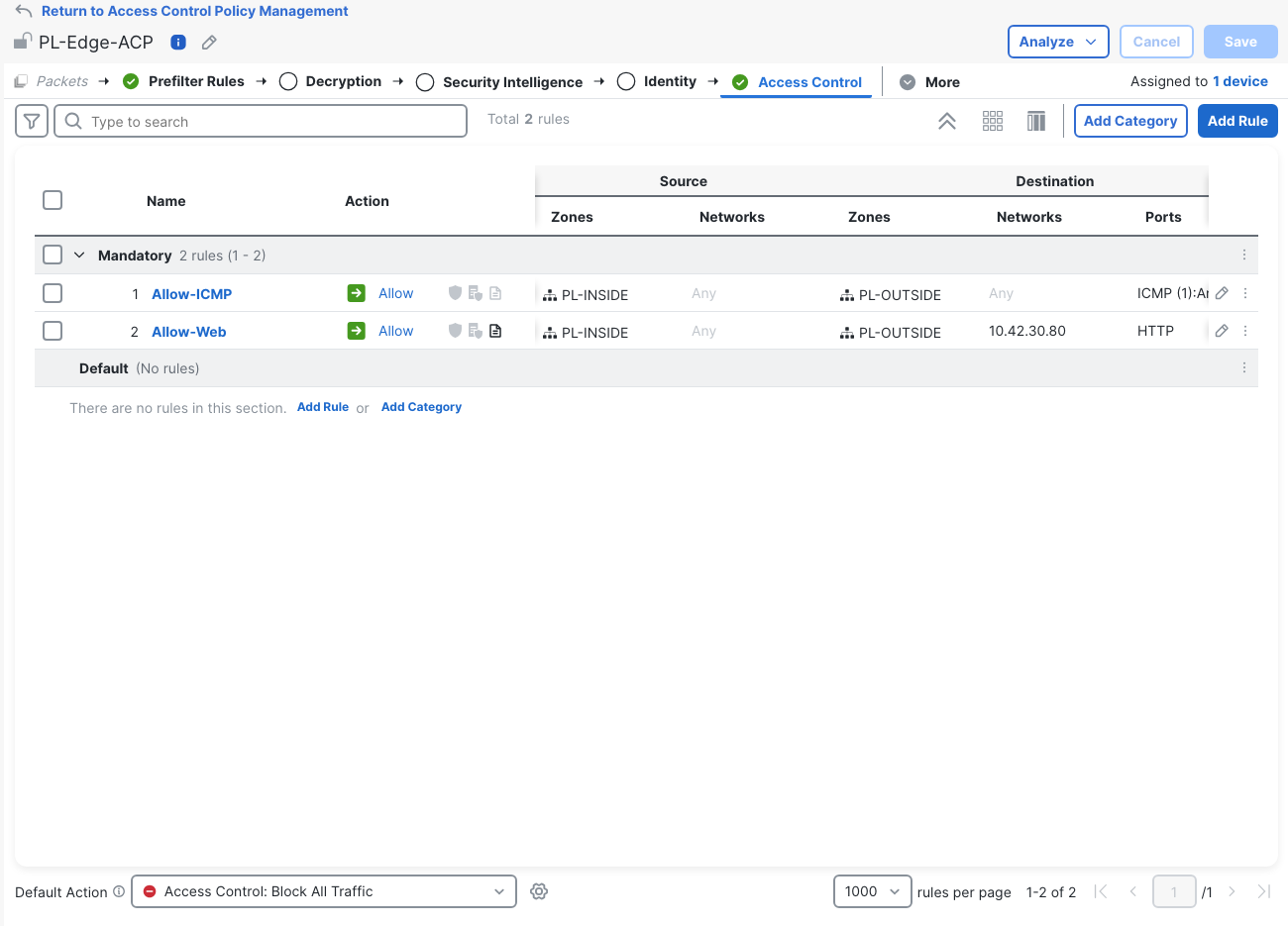
- Open Deploy → Advanced Deploy, select pl-ftd-edge, and click Deploy. Add notes explaining the correction and confirm the deployment.
- Review validation. This run showed 0 errors and 1 warning: Virtual Router changes might disrupt traffic. No virtual-router configuration was manually edited during reconciliation. The lab accepted Deploy on that validation dialog.
- Wait for completion. Deploy_Job_11 completed, bringing the corrected FMC policy onto the device.
These observations are specific to FMC 10.0.1 and FTDv 10.0.0 in this lab. The successful FTD rollback did not automatically re-enable the saved FMC rule.
Re-verify after the correction deploy
Both clients made fresh HTTP requests after Deploy_Job_11. Client-a returned:
HTTP 200 time 0.011622
Client-b returned:
HTTP 200 time 0.017417
The full checks also recorded four ping replies out of four from each client. TCP/8080 still timed out from both, preserving the baseline restriction. Restoring HTTP did not require opening every TCP service.
FTD's final ACL contained Allow-Web with hit count 5. The server-subnet route still pointed to 10.42.20.2 outside. Registration was Completed, and both management control and event channels were Connected.
FMC's final readback reported the device deployed and zero deployable devices:
  "deploymentStatus": "DEPLOYED",
...
    "limit": 0,
    "count": 0,
    "pages": 0
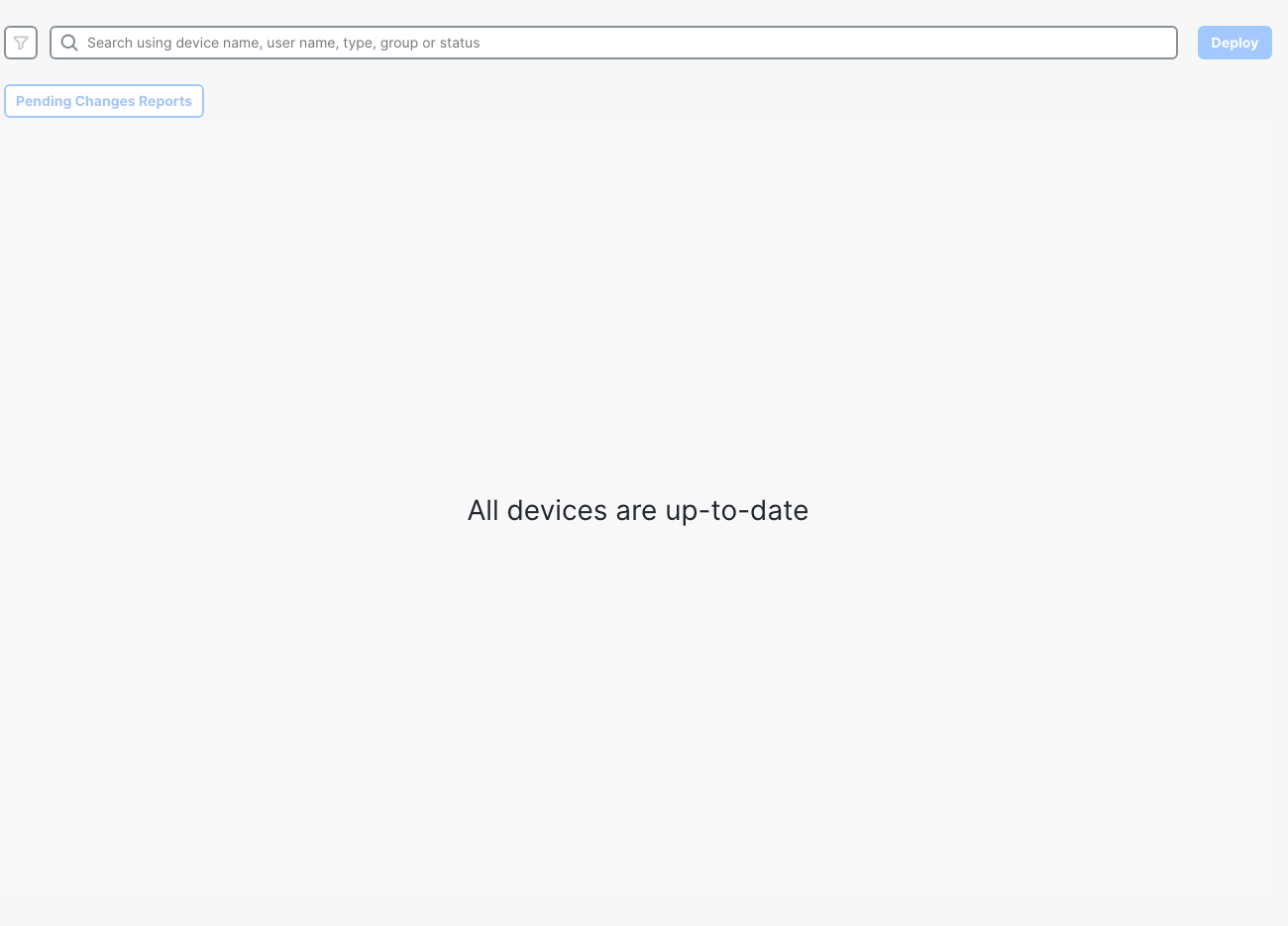
Device Management also showed Normal (1) and Deployment Pending (0). The final ACP had both rules enabled, default Block, and Default Prefilter Policy. Traffic was working, and FMC no longer held the disabled rule that caused the outage.
Verification checklist
- Before a change window, record a working application test, the expected blocked traffic, and the known-good deployment version.
- After Save, inspect the pending comparison. Check the rule's enabled state and remember that saved changes have not necessarily reached FTD.
- After deploying changes from FMC, wait for job completion, then test a fresh connection. A successful deployment can install a policy that blocks the intended traffic.
- Correlate the real request's source port with Unified Events. Keep packet-tracer tests separate from application evidence.
- Before rollback, preview the selected version and read the connection-and-route disruption warning.
- After rollback, verify real traffic, the installed ACL, and FMC's saved policy. Investigate pending changes before clicking Deploy again.
- Correct the policy in FMC, save, deploy, and wait for completion. Finish with fresh tests from both clients, the expected TCP/8080 block, and no pending deployment.
Next in this FMC series: FTD NAT in FMC: Auto NAT vs Manual NAT Rule Order, a NAT section-order fault where inbound static NAT kept working but the server's outbound source address changed.
Related firewall labs
- Register FTDv to FMC — Bring the managed device online and resolve a registration-key mismatch.
- FTD static route to a dead next hop — Trace a forwarding failure caused by the wrong gateway.
- FMC prefilter Fastpath skips the ACP — Follow traffic that bypasses the access control policy.
- Packet-tracer allows but no SYN-ACK returns — Compare the simulation verdict with captured traffic.
- FTD access control with FDM — Diagnose a separate rule-order fault under local management.
- Cisco ASA packet-tracer — Read the phases and final verdict of a simulated flow.
- Cisco FTD twice NAT in FMC — Swapped Original and Translated Destination objects break both the old and new partner addresses.
FAQ
Does an FMC deployment rollback restore the saved policy?
It did not in this lab. Rollback_Job_1 restored the device configuration and HTTP service, while FMC kept Allow-Web disabled. Enabling the rule, saving, and completing Deploy_Job_11 reconciled the two.
Why does FMC show deployment pending after a successful rollback?
Here, FMC marked policies out-of-date after device rollback. The readback reported DEPLOYMENT_PENDING, and Preview showed Allow-Web enabled on the device but disabled in FMC. Inspect that comparison and correct the intended policy before redeploying.
Can an FMC change be saved but not deployed while traffic still works?
Yes. After disabling Allow-Web and clicking Save, a fresh request from client-a source port 40241 still returned HTTP 200. HTTP failed only after Deploy_Job_10 completed and removed the deployed allow.
How did you verify the FTD configuration after rollback?
A real HTTP request returned 200 after rollback, Unified Events attributed it to Allow-Web, and the installed ACL again contained that rule. Packet-tracer also changed from drop to allow. The later correction deploy was checked separately, including both clients and FMC's final deployment state.