

Step 1: Configure IP Addresses
R1
R1(config)# interface loopback 0
R1(config-if)# ip address 1.1.1.1 255.255.255.255
R1(config-if)# description Router ID

R1(config)# interface gi0/0
R1(config-if)# ip address 10.1.12.1 255.255.255.252
R1(config-if)# no shutdown
R2
R2(config)# interface loopback 0
R2(config-if)# ip address 2.2.2.2 255.255.255.255

R2(config)# interface loopback 1
R2(config-if)# ip address 192.168.1.1 255.255.255.0
R2(config-if)# description User Network

R2(config)# interface gi0/0
R2(config-if)# ip address 10.1.12.2 255.255.255.252
R2(config-if)# no shutdown

R2(config)# interface gi0/1
R2(config-if)# ip address 10.1.23.2 255.255.255.252
R2(config-if)# no shutdown
R3
R3(config)# interface loopback 0
R3(config-if)# ip address 3.3.3.3 255.255.255.255

R3(config)# interface gi0/1
R3(config-if)# ip address 10.1.23.3 255.255.255.252
R3(config-if)# no shutdown
Verify connectivity:
(This article is part of the PingLabz OSPF series - the full OSPF guide maps the whole cluster in reading order.)
R1# ping 10.1.12.2
R2# ping 10.1.23.3
Step 2: Enable OSPF and Configure Router ID
R1
R1(config)# router ospf 1
R1(config-router)# router-id 1.1.1.1
R2
R2(config)# router ospf 1
R2(config-router)# router-id 2.2.2.2
R3
R3(config)# router ospf 1
R3(config-router)# router-id 3.3.3.3
What we did:
router ospf 1- Start OSPF process 1 (number is locally significant)router-id x.x.x.x- Manually set Router ID
Step 3: Advertise Networks with Network Statements
Understanding Network Statements
Format:
network [network-address] [wildcard-mask] area [area-id]
What it does:
- Matches interfaces whose IP addresses fall within the specified range
- Enables OSPF on those interfaces
- Assigns them to the specified area
Wildcard Masks Explained
A wildcard mask is the inverse of a subnet mask.
Rule:
- 0 = must match
- 255 = don't care
Examples:
Shortcut:
Subtract each octet of the subnet mask from 255 to get the wildcard mask.
Example: 255.255.255.0
- 255 - 255 = 0
- 255 - 255 = 0
- 255 - 255 = 0
- 255 - 0 = 255
- Wildcard = 0.0.0.255
Configure Network Statements
R1
R1(config-router)# network 1.1.1.1 0.0.0.0 area 0
R1(config-router)# network 10.1.12.0 0.0.0.3 area 0
What this does:
- First statement: Enable OSPF on Loopback0 (exact match for 1.1.1.1)
- Second statement: Enable OSPF on Gi0/0 (10.1.12.1 falls in 10.1.12.0/30 range)
R2
R2(config-router)# network 2.2.2.2 0.0.0.0 area 0
R2(config-router)# network 192.168.1.0 0.0.0.255 area 0
R2(config-router)# network 10.1.12.0 0.0.0.3 area 0
R2(config-router)# network 10.1.23.0 0.0.0.3 area 0
R3
R3(config-router)# network 3.3.3.3 0.0.0.0 area 0
R3(config-router)# network 10.1.23.0 0.0.0.3 area 0
Alternative: Match All Interfaces
If you want to enable OSPF on all interfaces:
Router(config-router)# network 0.0.0.0 255.255.255.255 area 0
⚠️ Warning: This enables OSPF on every interface. Use carefully.
Step 4: Verify OSPF Neighbors
Check neighbor adjacencies:
R1# show ip ospf neighbor
Neighbor ID     Pri   State           Dead Time   Address         Interface
2.2.2.2         1     FULL/  -        00:00:35    10.1.12.2       GigabitEthernet0/0
R2# show ip ospf neighbor
Neighbor ID     Pri   State           Dead Time   Address         Interface
1.1.1.1         1     FULL/  -        00:00:34    10.1.12.1       GigabitEthernet0/0
3.3.3.3         1     FULL/  -        00:00:38    10.1.23.3       GigabitEthernet0/1
R3# show ip ospf neighbor
Neighbor ID     Pri   State           Dead Time   Address         Interface
2.2.2.2         1     FULL/  -        00:00:36    10.1.23.2       GigabitEthernet0/1
What to look for:
- State: FULL - Adjacency is formed
- FULL/ - - Point-to-point link (no DR/BDR)
- Dead Time - Counting down from 40 seconds (default)
✅ Success! All neighbors are in FULL state.

Step 5: Verify OSPF Routes
Check Routing Table
R1:
R1# show ip route ospf
     2.0.0.0/32 is subnetted, 1 subnets
O       2.2.2.2 [110/2] via 10.1.12.2, 00:05:23, GigabitEthernet0/0
     3.0.0.0/32 is subnetted, 1 subnets
O       3.3.3.3 [110/3] via 10.1.12.2, 00:03:45, GigabitEthernet0/0
     10.0.0.0/8 is variably subnetted, 3 subnets, 2 masks
O       10.1.23.0/30 [110/2] via 10.1.12.2, 00:05:23, GigabitEthernet0/0
O    192.168.1.0/24 [110/2] via 10.1.12.2, 00:05:23, GigabitEthernet0/0
Understanding the output:
- O = OSPF route
- [110/2] = [Administrative Distance / Metric]
- 110 = OSPF's AD
- 2 = Cost to reach destination
- via 10.1.12.2 = Next-hop IP
- GigabitEthernet0/0 = Exit interface
Test Connectivity
Ping all loopbacks from R1:
R1# ping 2.2.2.2 source 1.1.1.1
!!!!!
Success rate is 100 percent (5/5)

R1# ping 3.3.3.3 source 1.1.1.1
!!!!!
Success rate is 100 percent (5/5)

R1# ping 192.168.1.1 source 1.1.1.1
!!!!!
Success rate is 100 percent (5/5)
✅ Full connectivity achieved!
Step 6: Verify OSPF Configuration
Check OSPF Process
R2# show ip ospf
 Routing Process "ospf 1" with ID 2.2.2.2
 Start time: 00:12:34.567, Time elapsed: 00:15:45.678
 Supports only single TOS(TOS0) routes
 Supports opaque LSA
 Supports Link-local Signaling (LLS)
 Supports area transit capability
 Router is not originating router-LSAs with maximum metric
 Initial SPF schedule delay 5000 msecs
 Minimum hold time between two consecutive SPFs 10000 msecs
 Maximum wait time between two consecutive SPFs 10000 msecs
 Number of external LSA 0. Checksum Sum 0x000000
 Number of opaque AS LSA 0. Checksum Sum 0x000000
 Number of areas in this router is 1. 1 normal 0 stub 0 nssa
 Area BACKBONE(0)
     Number of interfaces in this area is 4
     Area has no authentication
     SPF algorithm last executed 00:05:12.345 ago
     SPF algorithm executed 3 times
Key fields:
- Router ID: 2.2.2.2
- Number of areas: 1 (Area 0)
- Number of interfaces: 4 (Gi0/0, Gi0/1, Lo0, Lo1)
Check OSPF Interfaces
R2# show ip ospf interface brief
Interface    PID   Area            IP Address/Mask    Cost  State Nbrs F/C
Lo0          1     0               2.2.2.2/32         1     LOOP  0/0
Lo1          1     0               192.168.1.1/24     1     LOOP  0/0
Gi0/0        1     0               10.1.12.2/30       1     P2P   1/1
Gi0/1        1     0               10.1.23.2/30       1     P2P   1/1
Key fields:
- State: LOOP (loopback), P2P (point-to-point)
- Nbrs F/C: Neighbors Full / Total (e.g., 1/1 = 1 full neighbor out of 1 total)
Check Detailed Interface Info
R2# show ip ospf interface gi0/0
GigabitEthernet0/0 is up, line protocol is up
  Internet Address 10.1.12.2/30, Area 0
  Process ID 1, Router ID 2.2.2.2, Network Type POINT_TO_POINT, Cost: 1
  Transmit Delay is 1 sec, State POINT_TO_POINT
  Timer intervals configured, Hello 10, Dead 40, Wait 40, Retransmit 5
    oob-resync timeout 40
    Hello due in 00:00:07
  Supports Link-local Signaling (LLS)
  Index 1/1, flood queue length 0
  Next 0x0(0)/0x0(0)
  Last flood scan length is 1, maximum is 1
  Last flood scan time is 0 msec, maximum is 0 msec
  Neighbor Count is 1, Adjacent neighbor count is 1
    Adjacent with neighbor 1.1.1.1
  Suppress hello for 0 neighbor(s)
Key fields:
- Area: 0
- Network Type: POINT_TO_POINT
- Cost: 1
- Hello timer: 10 seconds
- Dead timer: 40 seconds
- Neighbor Count: 1 (R1)
Step 7: Check OSPF Database (LSDB)
R2# show ip ospf database

            OSPF Router with ID (2.2.2.2) (Process ID 1)

                Router Link States (Area 0)

Link ID         ADV Router      Age         Seq#       Checksum Link count
1.1.1.1         1.1.1.1         456         0x80000003 0x00A1B2 2
2.2.2.2         2.2.2.2         345         0x80000005 0x00C3D4 4
3.3.3.3         3.3.3.3         234         0x80000002 0x00E5F6 2
What you see:
- Each router advertises a Type 1 Router LSA
- All three routers are in the LSDB
- LSDBs are synchronized (same LSAs on all routers)
Get the OSPF Field Reference - 9 pages, free
Everything you'd want to remember about OSPF on nine printable pages. State machine diagram, LSA types, troubleshooting decision tree, copy-paste IOS XE templates, and real lab captures. Free for PingLabz members - just sign up with your email.
Common Configuration Mistakes
Mistake 1: Wrong Wildcard Mask
Problem:
R1(config-router)# network 10.1.12.0 0.0.0.255 area 0
Impact:
This matches 10.1.12.0 - 10.1.12.255 (256 IPs). If the interface is 10.1.12.1/30, it still matches, but it's sloppy and can cause issues in more complex configs.
Fix:
R1(config-router)# network 10.1.12.0 0.0.0.3 area 0
Mistake 2: Forgetting to Include Loopbacks
Problem:
Loopback networks aren't advertised because there's no network statement for them.
Symptom:show ip route ospf on other routers doesn't show the loopback networks.
Fix:
Add network statements for loopbacks:
R1(config-router)# network 1.1.1.1 0.0.0.0 area 0
Mistake 3: Different Area IDs
Problem:
R1(config-router)# network 10.1.12.0 0.0.0.3 area 0
R2(config-router)# network 10.1.12.0 0.0.0.3 area 1  ← Wrong area
Impact:
Neighbors won't form. Area ID mismatch prevents adjacencies.
Fix:
Ensure both sides of a link are in the same area.
Mistake 4: Wrong OSPF Process Number
Common question:
"Does the OSPF process number need to match on all routers?"
Answer:
No. The process number is locally significant. It doesn't need to match.
Example (this works):
- R1:
router ospf 1 - R2:
router ospf 100 - R3:
router ospf 42
Neighbors will still form as long as area IDs match.
Troubleshooting OSPF Neighbors Not Forming
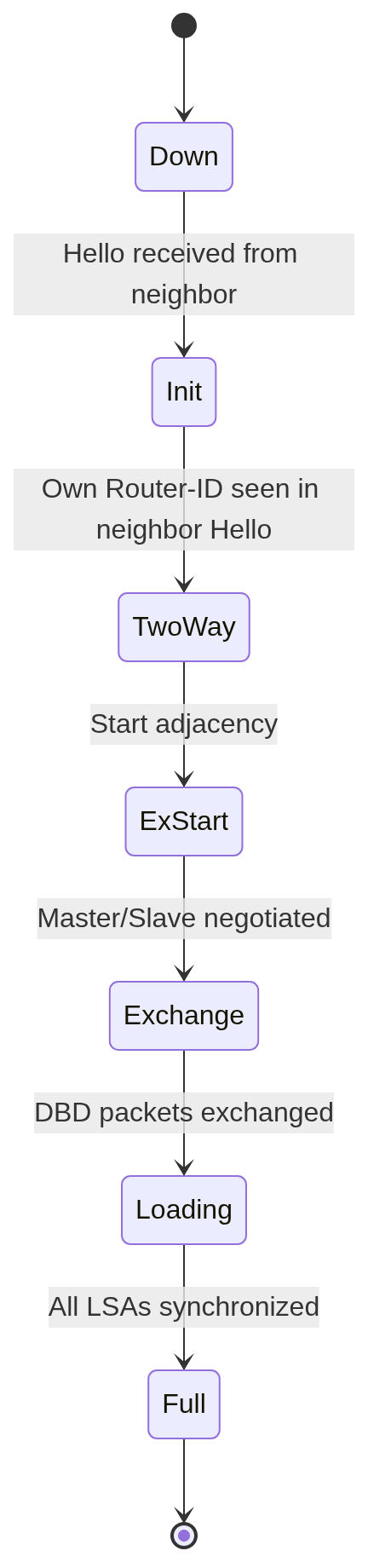
If neighbors aren't forming, check:
✅ IP connectivity - Can you ping the neighbor's IP?
✅ Area ID match - show ip ospf interface
✅ Subnet mask match - Mismatched masks prevent adjacency
✅ Hello/Dead timers match - show ip ospf interface
✅ Authentication - If enabled, configs must match
✅ Network statements - Are interfaces included in OSPF?
✅ Passive interfaces - Passive interfaces don't send Hellos
Debug OSPF adjacencies:
R1# debug ip ospf adj
⚠️ Turn off debug when done:
R1# undebug all
Learn more: OSPF Neighbors Not Forming Troubleshooting Guide
Best Practices for Single-Area OSPF
1. Use Specific Network Statements
Don't be lazy with wildcard masks. Use precise matches:
Good:
network 10.1.12.0 0.0.0.3 area 0
Bad:
network 0.0.0.0 255.255.255.255 area 0
2. Always Set Router ID Manually
Don't rely on automatic selection:
router-id 1.1.1.1
3. Use Passive Interfaces for User-Facing Networks
If a network has no other OSPF routers (e.g., user VLANs), make it passive:
R2(config-router)# passive-interface loopback 1
Learn more: OSPF Passive Interfaces
4. Adjust Reference Bandwidth
If you have GigabitEthernet or faster links:
Router(config-router)# auto-cost reference-bandwidth 10000
Learn more: How OSPF Calculates Cost
5. Document Your Config
Add descriptions to interfaces and document the OSPF design.
Summary: Configuration Checklist
Now you know how to:
✅ Enable OSPF with router ospf [process-id]
✅ Set Router ID with router-id
✅ Advertise networks with network statements
✅ Use wildcard masks correctly
✅ Verify neighbors with show ip ospf neighbor
✅ Check routes with show ip route ospf
✅ Troubleshoot common issues
Next Step:
Now that you can configure basic OSPF, learn about passive interfaces - a critical security and optimization feature. Read OSPF Passive Interfaces: When and How to Use Them next.
Internal Links:
- ← OSPF Router ID Configuration
- → OSPF Passive Interfaces
- → Interface-Based OSPF Configuration
- → OSPF Neighbors Not Forming