
Part of my series testing the NSA Network Infrastructure Security Guide in my home lab.
You SSH to a branch router during an incident and get Connection refused. The router is up, routing works, and the console is a long drive away. Very often the cause is that every VTY line is held by a session whose client is long gone: a laptop that went to sleep, a VPN that dropped, a jump host that rebooted. The router never heard a goodbye, so it keeps the line.
I built this in my home lab on IOS XE 17.18.2, filled all five VTY lines with sessions whose clients I then cut off, and tested the two fixes the NSA Network Infrastructure Security Guide (v1.2, Oct 2023) recommends: an idle timeout of five minutes or less (section 7.5) and TCP keepalives in both directions (section 7.6). The guide warns that with no timeout, an idle-connection DoS can last until the timeout is reached, "which could be indefinite if the idle timeout has been disabled." That is exactly what exec-timeout 0 0 does.
The lab
Built in my home lab with Containerlab: one Cisco IOL router running IOS XE 17.18.2 and three Alpine Linux hosts with OpenSSH and sshpass.
- BRANCH1: Ethernet0/1 10.74.10.1/24, Ethernet0/2 10.74.20.1/24, Ethernet0/3 10.74.30.1/24. SSH v2 only, local login, five VTY lines (0 to 4).
- c1 (10.74.10.11) and c2 (10.74.20.12): users whose sessions will go stale.
- admin (10.74.30.10): the engineer who needs to get in.
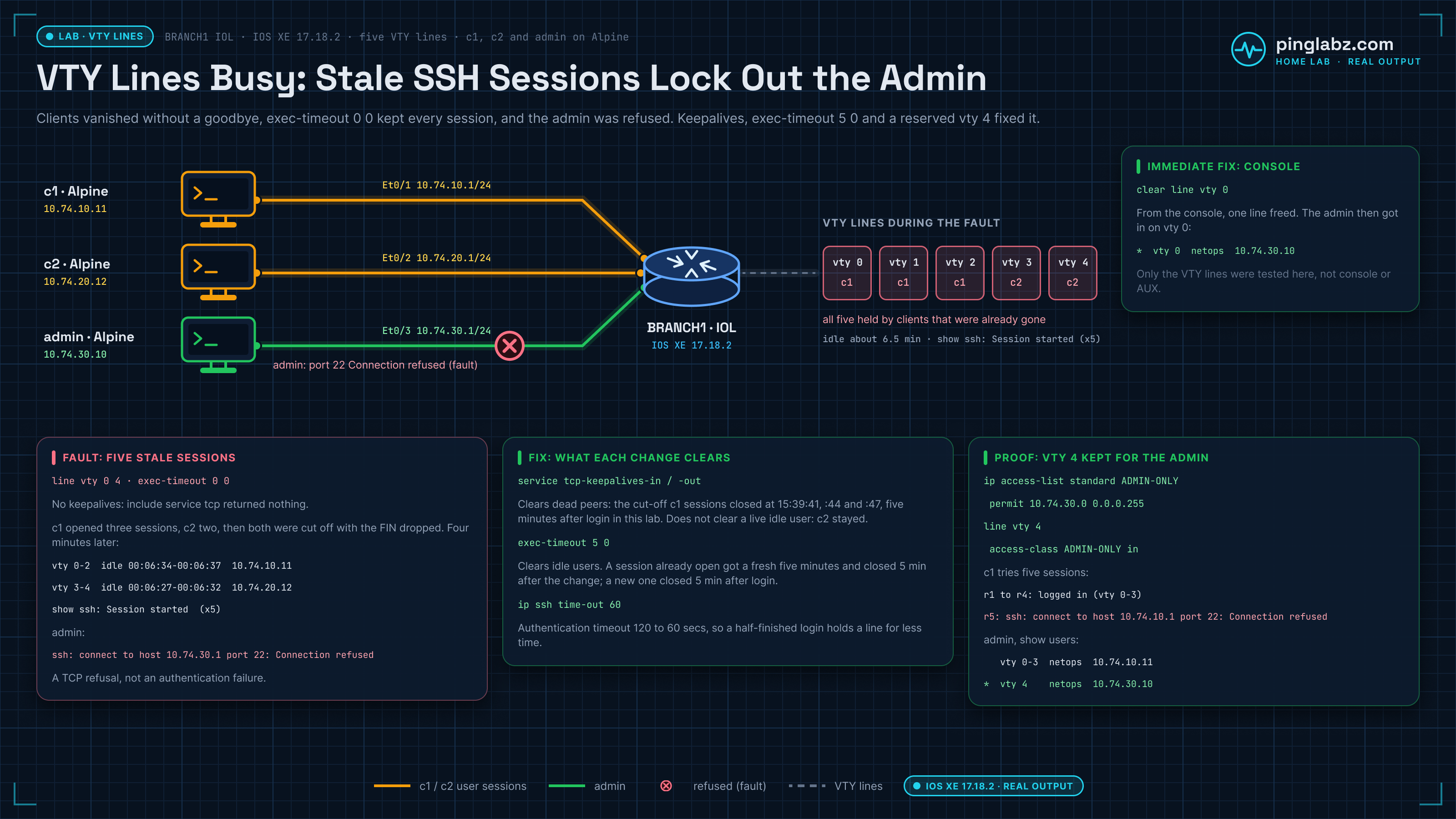
Passwords in the outputs are placeholders like <netops-pw>. The starting config is the one I still find on a lot of routers: no idle timeout and no keepalives.
BRANCH1#show running-config | include service tcp|^ip ssh
ip ssh bulk-mode 131072
ip ssh rsa keypair-name SSH-KEY
BRANCH1#show running-config | section line vty
line vty 0 4
 exec-timeout 0 0
 activation-character 13
 login local
 transport input ssh
BRANCH1#show ip ssh | include SSH|timeout
SSH Enabled - version 2.0
Authentication timeout: 120 secs; Authentication retries: 3
IOS Keys in SECSH format(ssh-rsa, base64 encoded): SSH-KEY
Note that show running-config | include service tcp returned nothing: neither TCP keepalive service is configured on this router.
Fault: all VTY lines in use, SSH connection refused
I opened three SSH sessions from c1 and two from c2 and left them idle. Every VTY line was now in use:
BRANCH1#show users
    Line       User       Host(s)              Idle       Location
*  0 con 0                idle                 00:00:00
   2 vty 0     netops     idle                 00:00:25 10.74.10.11
   3 vty 1     netops     idle                 00:00:30 10.74.10.11
   4 vty 2     netops     idle                 00:00:27 10.74.10.11
   5 vty 3     netops     idle                 00:00:19 10.74.20.12
   6 vty 4     netops     idle                 00:00:24 10.74.20.12
BRANCH1#show tcp brief
TCB       Local Address               Foreign Address             (state)
773BC7F8E6B8  10.74.10.1.22              10.74.10.11.58830           ESTAB
773BC5E72418  10.74.10.1.22              10.74.10.11.55406           ESTAB
773BC91714C8  10.74.20.1.22              10.74.20.12.35276           ESTAB
773BC9017000  10.74.10.1.22              10.74.10.11.58818           ESTAB
773BC261D2F0  10.74.20.1.22              10.74.20.12.35270           ESTAB
------------  0.0.0.0.22                 *.*                         LISTEN
Then I made the clients disappear the way a sleeping laptop or a dead VPN does. I added a firewall rule on c1 and c2 that drops all traffic to and from the router, then the SSH clients exited. With that rule in place nothing from the clients, not even a FIN, can reach the router, so it never learns the sessions ended. The admin host now cannot get in at all:
admin$ sshpass -p "<netops-pw>" ssh netops@10.74.30.1 'show users'; echo "sshpass exit $?"
sshpass exit 255
ssh: connect to host 10.74.30.1 port 22: Connection refused
This is a TCP refusal, not an authentication failure. With every VTY line taken, the router stops accepting new connections on port 22. Four minutes after the cut nothing had changed. The sessions were six and a half minutes idle, the router still showed all five SSH sessions as started, and the admin host was still refused:
BRANCH1#show users
    Line       User       Host(s)              Idle       Location
*  0 con 0                idle                 00:00:00
   2 vty 0     netops     idle                 00:06:37 10.74.10.11
   3 vty 1     netops     idle                 00:06:37 10.74.10.11
   4 vty 2     netops     idle                 00:06:34 10.74.10.11
   5 vty 3     netops     idle                 00:06:27 10.74.20.12
   6 vty 4     netops     idle                 00:06:32 10.74.20.12
BRANCH1#show ssh | include IN
0          2.0     IN   chacha20-polhmac-sha2-256-etm@openssh.com Session started       netops
1          2.0     IN   chacha20-polhmac-sha2-256-etm@openssh.com Session started       netops
2          2.0     IN   chacha20-polhmac-sha2-256-etm@openssh.com Session started       netops
3          2.0     IN   chacha20-polhmac-sha2-256-etm@openssh.com Session started       netops
4          2.0     IN   chacha20-polhmac-sha2-256-etm@openssh.com Session started       netops
With exec-timeout 0 0 and no keepalives, nothing on the router is ever going to clear these sessions. The only way in is the console.
Immediate fix: show users and clear line from the console
From the console, show users tells you which line to clear. Clearing one is enough to let one admin session in:
BRANCH1#clear line vty 0
[confirm]
 [OK]
BRANCH1#show users
    Line       User       Host(s)              Idle       Location
*  0 con 0                idle                 00:00:00
   3 vty 1     netops     idle                 00:07:01 10.74.10.11
   4 vty 2     netops     idle                 00:07:06 10.74.10.11
   5 vty 3     netops     idle                 00:06:58 10.74.20.12
   6 vty 4     netops     idle                 00:07:03 10.74.20.12
admin$ sshpass -p "<netops-pw>" ssh netops@10.74.30.1 'show users'
    Line       User       Host(s)              Idle       Location
   0 con 0                idle                 00:00:17
*  2 vty 0     netops     idle                 00:00:00 10.74.30.10
   3 vty 1     netops     idle                 00:07:27 10.74.10.11
   4 vty 2     netops     idle                 00:07:32 10.74.10.11
   5 vty 3     netops     idle                 00:07:24 10.74.20.12
   6 vty 4     netops     idle                 00:07:29 10.74.20.12
Once you are in over SSH you can clear the rest from there. But this only works if someone can reach the console, which is the whole problem at a remote site. The real fix is to make the router clean up by itself.
Fix 1: service tcp-keepalives-in clears dead SSH sessions
I enabled keepalives in both directions as the guide recommends, kept exec-timeout 0 0 on purpose so the keepalives were the only thing that could clear a session, and cleared the old lines:
BRANCH1(config)#service tcp-keepalives-in
BRANCH1(config)#service tcp-keepalives-out
BRANCH1(config)#end
BRANCH1#show running-config | include service tcp
service tcp-keepalives-in
service tcp-keepalives-out
Then a new test: three fresh sessions from c1 and one from c2. I cut c1 off the same way as before, and left c2 connected but idle, so it was a real user who simply was not typing.
BRANCH1#show clock
*15:35:00.589 UTC Mon Oct 26 2026
BRANCH1#show users
    Line       User       Host(s)              Idle       Location
*  0 con 0                idle                 00:00:00
   2 vty 0     netops     idle                 00:00:19 10.74.10.11
   3 vty 1     netops     idle                 00:00:24 10.74.10.11
   4 vty 2     netops     idle                 00:00:21 10.74.10.11
   5 vty 3     netops     idle                 00:00:14 10.74.20.12
Three minutes after the cut (15:38:22 on the router clock) show users still listed all three c1 sessions. By the seven-minute check they were gone, and the c2 session, idle for the same time but with a live client, was untouched:
BRANCH1#show clock
*15:42:36.160 UTC Mon Oct 26 2026
BRANCH1#show users
    Line       User       Host(s)              Idle       Location
*  0 con 0                idle                 00:00:00
   5 vty 3     netops     idle                 00:07:42 10.74.20.12
BRANCH1#show logging | include SSH|TCP|LINK|vty
(earlier lines trimmed)
*Oct 26 15:39:41.943: %SSH-5-SSH2_CLOSE: SSH2 Session from 10.74.10.11 (tty = 0) for user '' using crypto cipher 'chacha20-poly1305@openssh.com', hmac 'hmac-sha2-256-etm@openssh.com' closed
*Oct 26 15:39:44.936: %SSH-5-SSH2_CLOSE: SSH2 Session from 10.74.10.11 (tty = 1) for user '' using crypto cipher 'chacha20-poly1305@openssh.com', hmac 'hmac-sha2-256-etm@openssh.com' closed
*Oct 26 15:39:47.944: %SSH-5-SSH2_CLOSE: SSH2 Session from 10.74.10.11 (tty = 2) for user '' using crypto cipher 'chacha20-poly1305@openssh.com', hmac 'hmac-sha2-256-etm@openssh.com' closed
The c1 sessions had logged in at 15:34:41, 15:34:44 and 15:34:47, according to the router log. Each one closed five minutes later, three seconds apart, in the same order. That matches Cisco's documented behavior: keepalives go out once a minute on an idle connection, and the connection is closed if 5 minutes pass with no response. Here that was about five minutes after the last activity. That is the important limit: keepalives only clear sessions whose client is gone. A user who left a working laptop logged in still holds the line forever with exec-timeout 0 0.
Fix 2: exec-timeout 5 0, the NSA-recommended idle timeout
The guide recommends a session timeout of five minutes or less and says not to use zero, since zero turns the timeout off. I set the VTY lines to five minutes and also cut the SSH login timeout from 120 to 60 seconds, so a half-finished login cannot hold a line for two minutes:
BRANCH1(config)#line vty 0 4
BRANCH1(config-line)#exec-timeout 5 0
BRANCH1(config-line)#exit
BRANCH1(config)#ip ssh time-out 60
BRANCH1(config)#end
BRANCH1#show ip ssh | include timeout
Authentication timeout: 60 secs; Authentication retries: 3
BRANCH1#show clock
*15:42:57.454 UTC Mon Oct 26 2026
The idle c2 session was already open when I made the change. I opened a second idle session from c2 at about 15:43 to compare. One minute later both were still there:
BRANCH1#show users
    Line       User       Host(s)              Idle       Location
*  0 con 0                idle                 00:00:00
   2 vty 0     netops     idle                 00:00:58 10.74.20.12
   5 vty 3     netops     idle                 00:09:23 10.74.20.12
The older session was already more than nine minutes idle and still had not been closed. The router did not count idle time from before the change. Both sessions closed five minutes later:
BRANCH1#show logging | include 15:4[3-9].*SSH2_CLOSE
*Oct 26 15:47:57.347: %SSH-5-SSH2_CLOSE: SSH2 Session from 10.74.20.12 (tty = 3) for user 'netops' using crypto cipher 'chacha20-poly1305@openssh.com', hmac 'hmac-sha2-256-etm@openssh.com' closed
*Oct 26 15:48:17.351: %SSH-5-SSH2_CLOSE: SSH2 Session from 10.74.20.12 (tty = 0) for user 'netops' using crypto cipher 'chacha20-poly1305@openssh.com', hmac 'hmac-sha2-256-etm@openssh.com' closed
The old session (tty 3) closed exactly five minutes after I changed the config. The new one (tty 0) closed exactly five minutes after it logged in. The client saw this:
BRANCH1#Connection to 10.74.20.1 closed by remote host.
So if you fix this during an outage, the sessions that are already stuck do not clear right away. Clear them by hand once and let the timeout take care of the future.
Fix 3: reserve the last VTY line for the admin subnet
Timeouts limit how long a stuck line stays stuck, but someone can still fill every line on purpose. So I kept the last line for the management subnet with an access-class:
BRANCH1(config)#ip access-list standard ADMIN-ONLY
BRANCH1(config-std-nacl)#permit 10.74.30.0 0.0.0.255
BRANCH1(config-std-nacl)#exit
BRANCH1(config)#line vty 4
BRANCH1(config-line)#access-class ADMIN-ONLY in
BRANCH1(config-line)#end
c1 then tried to open five sessions. It got four, and the fifth was refused, because the only free line did not accept its address:
r1: BRANCH1#
r2: BRANCH1#
r3: BRANCH1#
r4: BRANCH1#
r5: ssh: connect to host 10.74.10.1 port 22: Connection refused
With c1 holding VTY 0 to 3, the admin host still got in on VTY 4:
admin$ sshpass -p "<netops-pw>" ssh netops@10.74.30.1 'show users'
    Line       User       Host(s)              Idle       Location
   0 con 0                idle                 00:00:04
   2 vty 0     netops     idle                 00:00:26 10.74.10.11
   3 vty 1     netops     idle                 00:00:23 10.74.10.11
   4 vty 2     netops     idle                 00:00:20 10.74.10.11
   5 vty 3     netops     idle                 00:00:17 10.74.10.11
*  6 vty 4     netops     idle                 00:00:00 10.74.30.10
In production I would put an access-class on every VTY line (the guide covers management ACLs in section 7.4) and keep the last line for the smallest admin range. The lockout risk of a wrong ACL is covered in VTY access-class lockout on IOS XE.
Final config: VTY lines, keepalives and SSH timeout
BRANCH1#show running-config | include service tcp|^ip ssh|access-list
service tcp-keepalives-in
service tcp-keepalives-out
ip ssh bulk-mode 131072
ip ssh time-out 60
ip ssh rsa keypair-name SSH-KEY
ip access-list standard ADMIN-ONLY
BRANCH1#show running-config | section line vty
line vty 0 3
 exec-timeout 5 0
 activation-character 13
 login local
 transport input ssh
line vty 4
 access-class ADMIN-ONLY in
 exec-timeout 5 0
 activation-character 13
 login local
 transport input ssh
I tested the VTY lines only. The guide's five-minute limit also covers the console and AUX lines, so set exec-timeout 5 0 under line con 0 too.
Key takeaways
Connection refusedon port 22 from a router that is otherwise healthy often means every VTY line is in use. Checkshow usersfrom the console.exec-timeout 0 0plus no keepalives means stale sessions never clear. In this lab they were still there after more than seven minutes idle, and nothing in that config would ever remove them.service tcp-keepalives-inand-outremoved sessions whose client had vanished, about five minutes after their last activity here, but left a live idle user alone.exec-timeout 5 0removes idle users too. A session already open when you change it gets a fresh five minutes, so clear stuck lines by hand during the outage.ip ssh time-out 60stops half-finished logins from holding a line for two minutes. (Cisco default is 120 seconds; I did not time this one.)- Keep one VTY line for the admin subnet with an access-class, so a full set of lines from anywhere else cannot lock you out.
For SSH setup itself, see How to enable SSH on Cisco routers and switches. For the rest of the management plane, see Hardening the management plane on IOS XE and login block-for and quiet-mode access-class. For tunnels and jump hosts, see SSH beyond login. Other fixes from the same series: SNMP RW community abuse and the SNMPv3 fix, Cisco password types 7, 5, 8 and 9 and Read-only users: privilege levels vs parser views. Source recommendations: NSA Network Infrastructure Security Guide (v1.2, Oct 2023), sections 7.4, 7.5 and 7.6.