To capture a pcap and full show output from a Containerlab lab automatically, read the Cisco CLI over the node's console, run tcpdump inside the client's network namespace, and sanitize the text before you save it. Built in my home lab with one IOL router and one Alpine client, the run saved a full show version, captured 10 ICMP frames (5 requests, 5 replies) with 0 kernel drops, replaced every management address with <mgmt>, and then removed the lab.
The useful pipeline is small:
- Deploy the two-node lab and check that the data link landed in the right containers.
- Read
showoutput from the IOL console and save it. - Capture a ping inside the client's network namespace and keep the pcap unchanged.
- Redact management addresses from the text, hash the pcap, then destroy the lab.
Lab topology: one IOL router and one Alpine client
The data link is R1 Ethernet0/1 (10.66.0.1/30) ↔ client eth1 (10.66.0.2/30). The IOL container calls this interface eth1. Containerlab supplies its default management network separately.
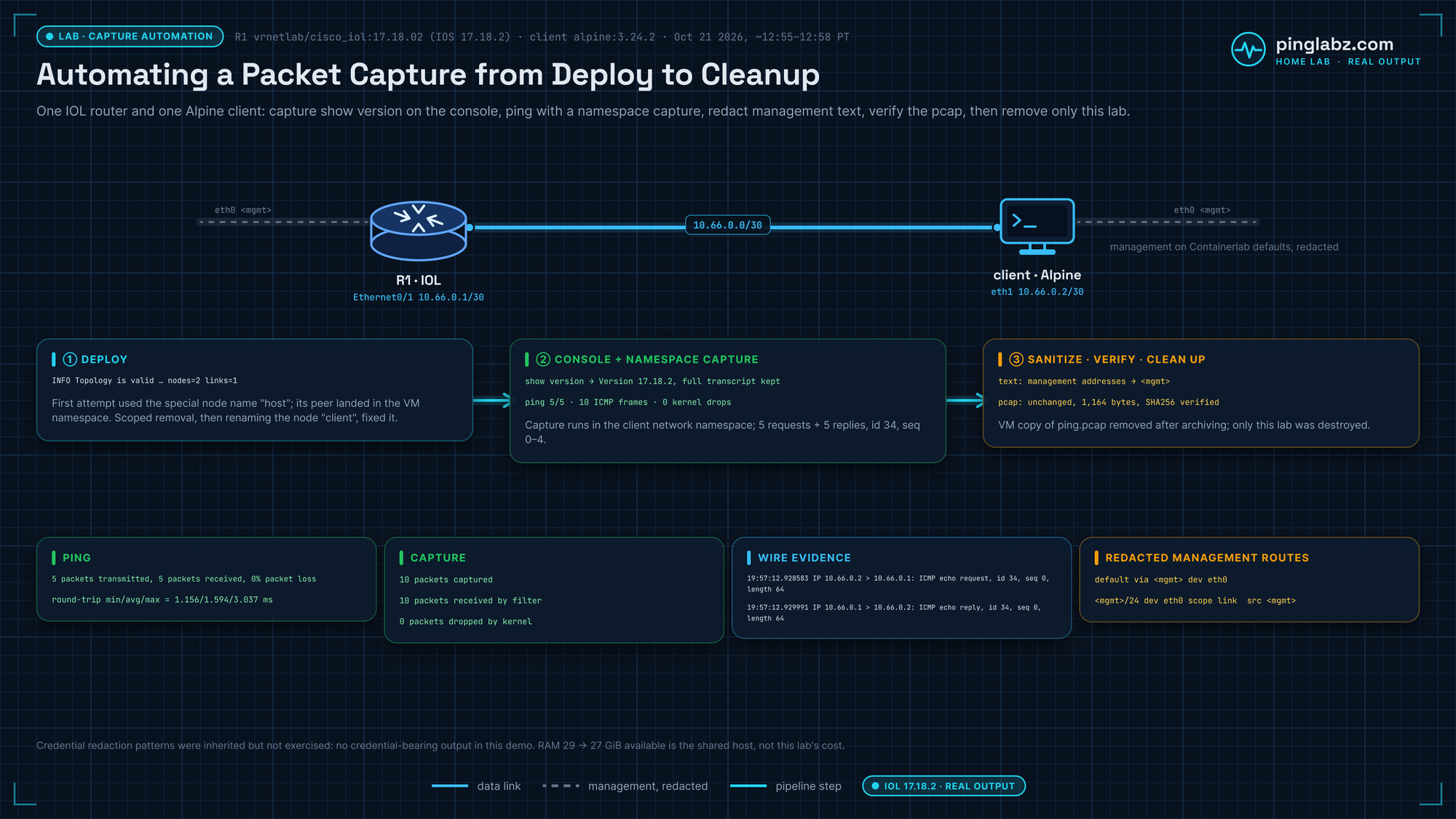
Save this as capauto.clab.yml in ~/labs/capauto/. I ran it as pl-capauto; Containerlab's topology docs advise against dashes in lab names, so it's capauto here, and the container names become clab-capauto-R1 and clab-capauto-client.
name: capauto
topology:
  nodes:
    R1:
      kind: cisco_iol
      image: vrnetlab/cisco_iol:17.18.02
      startup-config: R1.cfg
    client:
      kind: linux
      image: alpine:3.24.2
      cmd: sleep infinity
      exec:
        - ip addr add 10.66.0.2/30 dev eth1
        - ip link set eth1 up
  links:
    - endpoints: ["R1:eth1", "client:eth1"]
And R1.cfg beside it:
hostname R1
no ip domain-lookup
interface Ethernet0/1
 description CAPAUTO-to-client-eth1
 ip address 10.66.0.1 255.255.255.252
 no shutdown
end
Step 1: deploy, and why a node named host breaks the link
cd ~/labs/capauto
containerlab validate -t capauto.clab.yml
sudo containerlab deploy -t capauto.clab.yml
My first attempt hit a Containerlab quirk: I had named the Alpine node host. Deploy returned exit 0, but Alpine's address commands failed. Containerlab treats host in a link endpoint as the host's root namespace (see its network docs), so the far end of the veth landed on the VM instead of inside Alpine. Matching veth indexes on the VM and on R1 showed where the peer had gone. I destroyed that attempt, renamed the node client, and deployed again; this time both address commands ran and eth1 was inside both containers.
The corrected validation:
19:56:35 INFO Topology is valid name=pl-capauto nodes=2 links=1Step 2: save show output from the IOL console
docker exec alone would enter the container's shell, not the Cisco CLI, as the IOL console notes explain. The script attaches to R1's console stream (the same stream docker attach uses), presses Enter, runs enable and terminal length 0, then sends the command list one at a time and reads until the prompt returns. Containerlab also documents ssh admin@clab-capauto-R1 as the IOL CLI path (IOL kind docs); I didn't test SSH in this run.
The first capture ran show clock, the full show version, show version | include IOS, show ip interface brief and show running-config. The IOS clock shows a leading *, which means it isn't synced to an authoritative source. For the Alpine client, the script recorded date -u, /etc/alpine-release, ip address and ip route instead.
The interface table from that capture:
R1#show ip interface brief
Interface              IP-Address      OK? Method Status                Protocol
Ethernet0/0            unassigned      YES unset  administratively down down
Ethernet0/1            10.66.0.1       YES TFTP   up                    up
Ethernet0/2            unassigned      YES unset  administratively down down
Ethernet0/3            unassigned      YES unset  administratively down down
No credentials are stored in the scripts.
Step 3: capture a pcap in the client's network namespace
Every Containerlab node has its own network namespace, so run tcpdump inside it. Containerlab documents this one-liner (packet capture docs):
sudo ip netns exec clab-capauto-client tcpdump -U -nni eth1 -w ping.pcap 'icmp and host 10.66.0.1 and host 10.66.0.2'Wait for listening on eth1, then send the traffic from a second terminal and stop the capture with Ctrl-C:
docker exec clab-capauto-client ping -c 5 -W 2 10.66.0.1My script did the same thing a slightly different way: it looked up the client container's PID and entered only its network namespace with nsenter, using the VM's own tcpdump, so Alpine needed no package install. The script waited for listening on eth1, ran the ping, then stopped tcpdump with SIGINT and checked both exit codes:
PID=$(docker inspect -f '{{.State.Pid}}' clab-capauto-client)
sudo nsenter -t "$PID" -n tcpdump --immediate-mode -U -n -i eth1 -w ping.pcap 'icmp and host 10.66.0.1 and host 10.66.0.2'
Hash the pcap (sha256sum ping.pcap) so you can prove later that it wasn't edited. Mine was 1,164 bytes with SHA256 d31518015048f73850cd566c76453e8b5a025096295d0f5ca3c6090eec660a67. For the next step up, capture at three points on an IOL lab.
Step 4: redact management addresses, then clean up
All text output goes through one function before it's written to disk or printed. This is the core of the sanitize() I used, trimmed to Containerlab's default management ranges: it strips terminal colour codes, drops any line that looks like it carries a credential, and replaces management IPv4 and IPv6 addresses with <mgmt>.
import re

def sanitize(s):
    s = re.sub(r'\x1b\[[0-9;]*[A-Za-z]', '', s)
    lines = []
    for l in s.splitlines():
        if re.search(r'(?i)(\bkey 0 |\bsecret\s|username .*password |username .*secret |enable password|\bpassword\s|BEGIN .*PRIVATE KEY|MS-MPPE-(?:Recv|Send)-Key|Password:|\b(?:token|community|pre-shared-key)\s)', l):
            lines.append('[sensitive line omitted]')
            continue
        l = re.sub(r'3fff:172:[0-9a-f:]+', '<mgmt>', l)
        l = re.sub(r'--password \S+', '--password [omitted]', l)
        l = re.sub(r'\b172\.(?:1[6-9]|2\d|3[01])(?:\.\d{1,3}){2}\b', '<mgmt>', l)
        lines.append(l)
    return '\n'.join(lines) + '\n'
This run exercised only the management-address redaction, on real Alpine route output. The credential patterns were never exercised: no credential-bearing line came up in this small demo, so it doesn't prove coverage of any secret format; review the patterns when your command set changes. The pcap is not run through text regexes, because that would corrupt a binary file. Instead I decoded it and checked that it held only the two lab addresses and ICMP echo traffic.
Then remove the lab and its directory:
sudo containerlab destroy -t capauto.clab.yml
cd ~ && rm -rf ~/labs/capauto
Copy the pcap and the saved text somewhere else before you remove the directory.
Verify the run: ping, capture counters and redacted routes
You can read the pcap with tshark or tcpdump -nn -r ping.pcap. These are the lines that prove each step.
IOL software on R1:
Cisco IOS Software [IOSXE], Linux Software (X86_64BI_LINUX-ADVENTERPRISEK9-M), Version 17.18.2, RELEASE SOFTWARE (fc3)Client time and Alpine release:
Wed Oct 21 19:57:11 UTC 2026
3.24.2
Ping result:
5 packets transmitted, 5 packets received, 0% packet loss
round-trip min/avg/max = 1.156/1.594/3.037 ms
Capture counters:
10 packets captured
10 packets received by filter
0 packets dropped by kernel
First request and reply in the pcap (timestamps are UTC; 19:57 UTC is 12:57 PT):
19:57:12.928583 IP 10.66.0.2 > 10.66.0.1: ICMP echo request, id 34, seq 0, length 64
19:57:12.929991 IP 10.66.0.1 > 10.66.0.2: ICMP echo reply, id 34, seq 0, length 64
Sanitized routes on the client, with the management addresses replaced:
default via <mgmt> dev eth0
10.66.0.0/30 dev eth1 scope link  src 10.66.0.2
<mgmt>/24 dev eth0 scope link  src <mgmt>
This demo verified IOL console capture and a bounded ICMP pcap. It did not verify SSH authentication to IOL, other appliance consoles, long-running capture rotation, or redaction of arbitrary production traffic.
From here, feed the pcap to Zeek, or capture on the router itself when you need the on-box view.