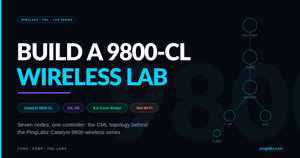
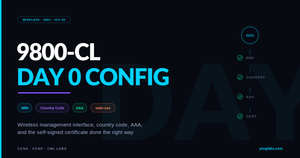
This is Part 2 of the PingLabz 9800 Wireless Labs series. In Part 1 we built the topology in Cisco Modeling Labs: a 9800-CL, a small IOL XE campus underneath it, a bridge to a physical AP, and CML's simulated wireless pair. Now we make it real: bring up the wired underlay, then walk the 9800-CL through its Day 0 configuration - wireless management interface, country code, admin access, and the self-signed certificate that the GUI and every future AP join depend on. Everything here was captured live from the lab. For background concepts, the wireless guide covers the architecture in depth.
Video coming soon - the YouTube embed will land here when Part 2 is live.
Recap: the Addressing Plan
VLAN 10  MGMT              10.10.10.0/24   gw .1   WLC WMI = 10.10.10.10
VLAN 20  WIRELESS-CLIENTS  10.10.20.0/24   gw .1   client traffic
VLAN 30  APS               10.10.30.0/24   gw .1   access points
edge     /30 link          10.0.0.0/30             CORE-SW1 to EDGE-RTR1
Step 1: The Wired Underlay
The WLC cannot do anything until the network beneath it works, so the first half of this part is plain L2/L3. CORE-SW1 is the L3 heart of the lab: it owns all three SVIs, routes to the edge over a /30, and trunks down to the access layer and across to the WLC.
hostname CORE-SW1
ip routing
!
vlan 10
 name MGMT
vlan 20
 name WIRELESS-CLIENTS
vlan 30
 name APS
!
interface Ethernet0/0
 description Link to EDGE-RTR1
 no switchport
 ip address 10.0.0.2 255.255.255.252
!
interface Ethernet0/1
 description Trunk to ACCESS-SW1
 switchport trunk encapsulation dot1q
 switchport trunk allowed vlan 10,20,30
 switchport mode trunk
!
interface Ethernet0/2
 description Trunk to WLC1 Gi1
 switchport trunk encapsulation dot1q
 switchport trunk allowed vlan 10,20,30
 switchport mode trunk
!
interface Vlan10
 ip address 10.10.10.1 255.255.255.0
interface Vlan20
 ip address 10.10.20.1 255.255.255.0
interface Vlan30
 ip address 10.10.30.1 255.255.255.0
!
ip route 0.0.0.0 0.0.0.0 10.0.0.1
ACCESS-SW1 is pure L2: a trunk up to the core, the physical AP port in VLAN 30, and the simulated AP port in VLAN 20. Both AP-facing ports get portfast (an AP rebooting through 30 seconds of STP listening/learning is a self-inflicted outage).
interface Ethernet0/0
 description Trunk to CORE-SW1
 switchport trunk encapsulation dot1q
 switchport trunk allowed vlan 10,20,30
 switchport mode trunk
!
interface Ethernet0/1
 description Physical AP via EXT-BRIDGE
 switchport mode access
 switchport access vlan 30
 spanning-tree portfast
!
interface Ethernet0/2
 description SIM-AP1
 switchport mode access
 switchport access vlan 20
 spanning-tree portfast
Verification before touching the WLC (if this is broken, everything after it will be too):
CORE-SW1# show interfaces trunk

Port           Mode             Encapsulation  Status        Native vlan
Et0/1          on               802.1q         trunking      1
Et0/2          on               802.1q         trunking      1

Port           Vlans allowed on trunk
Et0/1          10,20,30
Et0/2          10,20,30

CORE-SW1# show ip interface brief | exclude unassigned
Interface              IP-Address      OK? Method Status                Protocol
Ethernet0/0            10.0.0.2        YES TFTP   up                    up
Vlan10                 10.10.10.1      YES TFTP   up                    up
Vlan20                 10.10.20.1      YES TFTP   up                    up
Vlan30                 10.10.30.1      YES TFTP   up                    up
One CML-specific note: on the IOL-L2 image, VLANs defined in a startup config do not always survive the first boot (the vlan database is built at runtime). If show interfaces trunk shows your VLANs allowed but not active, re-enter the vlan definitions in config mode and they activate immediately.
Step 2: 9800-CL Day 0, Line by Line
The 9800 Day 0 wizard exists, but doing it manually teaches you what the wizard hides - and it is only about fifteen lines. Four building blocks: identity and AAA, L2 plumbing, the wireless management interface, and the country code.
hostname WLC1
ip domain name pinglabz.lab
username admin privilege 15 secret Cisco123!
!
aaa new-model
aaa authentication login default local
aaa authorization exec default local
!
vlan 10
 name MGMT
vlan 20
 name WIRELESS-CLIENTS
vlan 30
 name APS
!
interface GigabitEthernet1
 switchport mode trunk
 switchport trunk allowed vlan 10,20,30
!
interface Vlan10
 description Wireless Management
 ip address 10.10.10.10 255.255.255.0
 no shutdown
!
ip route 0.0.0.0 0.0.0.0 10.10.10.1
!
wireless management interface Vlan10
wireless country US
!
ip http secure-server
ip http authentication local
Why each block matters:
aaa authentication/authorization local - without it, GUI login fails even with a valid admin account.
Gi1 as a trunk + SVI 10 - the 9800-CL data port is a switchport; without the trunk and SVI the controller has no L3 presence at all.
wireless management interface Vlan10 - this is the WLC's identity. CAPWAP, AP joins, mobility - all of it sources from the WMI. No WMI, no wireless.
wireless country US - APs will not power their radios without a regulatory domain. The classic symptom is an AP that joins and then sits with radios down.
ip http secure-server - no GUI without it. We deliberately leave plain ip http server off; IOS XE even prints a security warning if you enable it.
Step 3: The Self-Signed Certificate (9800-CL Only)
Hardware 9800s ship with a manufacturer-installed certificate (MIC) that APs use to validate the controller during the CAPWAP-DTLS handshake. The 9800-CL is a virtual machine - no MIC - so it needs a self-signed certificate bound to the wireless management trustpoint. Skip this and APs will refuse to join, with DTLS errors that do not obviously say "you forgot the cert".
Here is the part that cost us real lab time, so you don't have to repeat it: the obvious approach does not work. If you build a trustpoint manually (crypto key generate rsa, crypto pki trustpoint, enrollment selfsigned, crypto pki enroll) you get a perfectly valid certificate - show crypto pki certificates says Available - but bind it with wireless management trustpoint and the wireless process refuses to see it:
WLC1# show wireless management trustpoint
Trustpoint Name  : 9800-selfsigned
Certificate Info : Not Available     <-- valid cert, but wireless won't use it
Private key Info : Not Available
The 9800-CL has a purpose-built exec command for this. It temporarily stands up an internal CA (WLC_CA), issues the device certificate to it over SCEP, binds the trustpoint to the WMI, and shuts the CA back down - all in one shot:
WLC1# wireless config vwlc-ssc key-size 2048 signature-algo sha256 password 0 PingLabz2026
    Configuring vWLC-SSC...
    Crypto PKI CA server enabled. CA server name: 'WLC_CA'
    Crypto PKI trustpoint configured. Trustpoint name: 'WLC1_WLC_TP'
    Shutting down CA server.
    Trustpoint name: 'WLC1_WLC_TP' set to wireless management.

Script is completed
Three prerequisites, learned the hard way:
1. The WMI must be up and pingable first. The internal script issues the cert over SCEP to the WMI's own IP and aborts if the ping fails.
2. ip http server must be enabled during generation. SCEP enrollment runs over HTTP; you can (and should) disable it again right after.
3. No $ in the password argument. Known parsing bug: everything from the $ on is silently dropped, and the script fails on password length.
The trustpoint is always named <hostname>_WLC_TP and the certificate is valid for 10 years.
One more AAA lesson from the same session: aaa new-model applies to the console line too. After the next reload, the serial console demanded a login, which broke our lab automation mid-build. If you want a lab console that never asks for a password (while SSH and the GUI still do), exempt the console line with a named method list:
aaa authentication login CONSOLE none
aaa authorization exec CONSOLE none
line con 0
 login authentication CONSOLE
 authorization exec CONSOLE
Step 4: Verify Everything
WLC1# show wireless management trustpoint
Trustpoint Name  : WLC1_WLC_TP
Certificate Info : Available
Certificate Type : SSC
Certificate Hash : 20df6fb7ed29612f1864f3fca4ed0b0452636b2e
Private key Info : Available

WLC1# ping 10.10.10.1
!!!!!
Success rate is 100 percent (5/5), round-trip min/avg/max = 3/4/6 ms

WLC1# show wireless interface summary

Wireless Interface Summary

Interface Name Interface Type VLAN ID IP Address     IP Netmask     NAT-IP Address   MAC Address
--------------------------------------------------------------------------------------------------
Vlan10         Management     10      10.10.10.10    255.255.255.0  0.0.0.0          001e.140f.03ff

WLC1# show wireless country configured

Configured Country..........................   US - United States
Configured Country Codes
        US  - United States    802.11a Indoor,Outdoor/ 802.11b Indoor,Outdoor/ 802.11g Indoor,Outdoor/ 802.11 6GHz Indoor,Outdoor

WLC1# show ap summary
Number of APs: 0

WLC1# show wlan summary
Number of WLANs: 0
Zero APs and zero WLANs is exactly right for the end of Day 0. The controller is reachable, owns its management identity, knows its regulatory domain, and has a certificate to offer. The GUI is now live at https://10.10.10.10 - log in with the admin account and you land on a dashboard that is empty in all the right ways.
Key Takeaways
Day 0 on a 9800-CL is four ideas: give the controller an identity (WMI on its own VLAN, sourced from an SVI over a trunked data port), give it a regulatory domain (no country code, no radios), give it AAA that the GUI can actually use (but exempt the console), and give it a certificate - generated with wireless config vwlc-ssc, not a hand-rolled trustpoint, because the wireless process only trusts its own enrollment flow. With the underlay verified first, the whole thing is under twenty lines of config. In Part 3 we tackle the part of the 9800 everyone finds hardest coming from AireOS: the config model - WLAN profiles, policy profiles, and tags. The full series index lives on the 9800 Wireless Labs page, and members can skip ahead with the config snapshots on the lab files page.